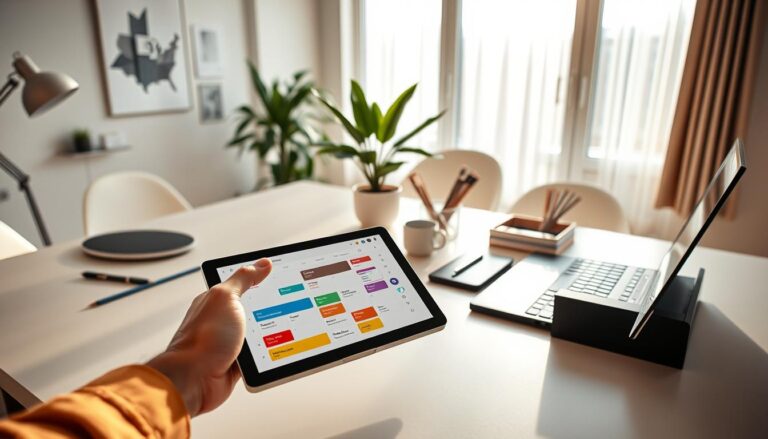

Almost 70% of Americans prefer apps to organize their day, more than those using paper planners.
This article is a handy guide to great time management apps for daily life in the USA. Whether it’s school, freelance jobs, family stuff, or leading a small team, the best tools can simplify your tasks.
Apps are key today since working from home and packed schedules demand being online. Features like syncing across devices and instant updates help app-based organizers outdo paper lists in keeping life ordered.
Here, you’ll find clear comparisons, lists of features, affordable choices, tools for teams, setup advice, and future AI upgrades. We cover apps for managing tasks, calendars, tracking time, and boosting overall productivity. These tips are for students, parents, freelancers, and remote teams.
Use this guide to make your daily life smoother and your work more productive, leading to a more organized, efficient lifestyle.
Understanding Time Management Apps
Time management apps help you organize your day better. They come in many forms, from simple planners to complex tools that combine calendars, tasks, and team workflows. These apps are designed for individual planning, group projects, and tracking work hours.
What are Time Management Apps?
Time management apps are digital tools for scheduling, setting deadlines, and reminding you of tasks. They range from task managers like Todoist and Asana to calendar apps such as Google Calendar. Tools like Clockify and Toggl help track time. Some products, like Microsoft To Do with Outlook, combine task lists and calendars.
These apps let you create tasks, set up recurring tasks, and use tags and labels. You can schedule events in your calendar and track time. Many also offer project boards and ways for teams to assign tasks and track progress.
Benefits of Using Time Management Apps
Productivity tools make it easier to focus by turning big priorities into manageable lists. Shared calendars and timelines reduce the chance of overlooking important tasks. Time tracking helps with billing clients or understanding how you spend your hours.
These apps help you switch between tasks less by working with your email and chat. They can remind you of deadlines automatically. Freelancers find them handy for keeping accurate invoices. Families use shared calendars to manage events and chores together.
Features to Look for in Time Management Apps
Picking the right time management app means understanding important features. Look for designs that make things smooth, settings that fit your style, and link-ups that keep your tools together. These factors help the app keep you organized.
User-Friendly Interface
You want an app that’s easy the first time you use it. A simple, clear interface helps you add tasks without hassle. It’s great when it works quickly on both your phone and computer.
Shortcuts for adding tasks and systems that understand everyday language save time. Todoist is a good example of this. Trello shows how easy-to-use kanban boards can help you sort tasks by priority.
Features like good accessibility, easy-to-read labels, and shortcuts for typing make it easy for heavy users. These help you stay focused on work, not on figuring out the app.
Customization Options
Being able to change an app to fit your needs is important. Pick apps that offer different ways to view tasks, like lists or calendars, depending on what you’re doing.
Using custom tags, labels, and flags can help you find what you need fast. Settings for tasks you do over and over save you time. These help you use methods like GTD or Pomodoro effectively.
You can set notifications to be helpful, not bothersome. Set up what works best for you, like morning updates or color-coding.
Integration with Other Tools
Connecting your app with other tools saves time and keeps everyone on the same page. Linking with Google Calendar or Outlook helps you not miss deadlines. Slack or Teams can give you instant updates.
Linking to Google Drive or Dropbox keeps your files with your tasks. Tools like Zapier make your apps work together without extra effort. Asana’s way of sending Slack messages is a great example of this.
Check if you can connect the app with your other work tools easily. This makes the app a helpful part of your whole setup.
Things like sync, being able to access your information offline, and keeping your data secure are important. Being able to sign in easily is a plus for team apps.
Quick checklist to evaluate any candidate:
- Ease of onboarding and learning curve
- Availability of templates and recurring rules
- API access and supported integrations
- Platform coverage: iOS, Android, web, desktop
- Offline mode, sync reliability, and encryption
| Feature | Why it matters | Example |
|---|---|---|
| User-friendly interface | Speeds task entry and reduces mistakes | Todoist quick add, Trello boards |
| Customization options | Adapts to GTD, time-blocking, Pomodoro | Custom views, labels, templates |
| Integration with other tools | Keeps calendars, chat, and storage in sync | Google Calendar, Slack, Zapier |
| Security & sync | Ensures data is available and protected | Offline access, encryption, SSO |
| Platform ecosystem | Lets you work on any device | iOS, Android, web, macOS, Windows |
Popular Time Management Apps for Individuals
Many popular time management apps are great for individuals and light teamwork. We’ll look at three choices, from simple to complex. Try them for free to see which one fits how you work.
These apps help you manage tasks and stay productive. You can plan daily tasks, track your progress, and keep your schedule organized. Each app has its own strengths based on your work style.
Todoist
Todoist lets you quickly add tasks with its smart input feature. For example, typing “Call Sarah tomorrow at 10 am” sets the reminder. It’s built for quick use and keeping focused.
This app has features like recurring tasks and priority levels. It also has labels, filters, and a Karma score to track your productivity. You can use it on many platforms, and its free version meets basic needs. Paid plans offer more features like reminders and location alerts.
It’s ideal for those who want a simple yet powerful to-do list app. It helps prioritize tasks with minimal setup.
Trello
Trello uses boards and cards to organize your work visually. Cards can contain lists, attachments, due dates, and comments, allowing quick status checks.
It also offers extra features, like calendar views and app integrations. Trello works on mobile and desktop, providing a generous free version. Business features offer more automation for tasks.
It’s perfect for those who prefer to see their projects in a visual format. Great for creative projects and simple tasks.
Asana
Asana offers more detailed project and task management features. You get various views like list, board, timeline, and calendar. It supports task dependencies, milestones, and basic reporting.
The app integrates with tools like Slack and Microsoft Teams. Its pricing varies, from free plans for small teams to more advanced options.
It suits users looking for comprehensive project management and team collaboration.
| App | Strength | Platforms | Best For | Free Tier |
|---|---|---|---|---|
| Todoist | Fast input, smart scheduling, priority & tags | iOS, Android, Web, macOS, Windows | Personal to-dos and lightweight planning | Yes — basic features |
| Trello | Visual boards, simple checklists, flexible cards | iOS, Android, Web, Desktop | Visual workflows and creative projects | Yes — generous but limited power-ups |
| Asana | Project views, dependencies, milestones, reporting | iOS, Android, Web, Desktop | Structured projects and team collaboration | Yes — basic team features |
When picking a task management app, think about what each excels in: Todoist for personal tasks, Trello for visual organization, and Asana for project management. Trying their free versions can help you find the right tool for your needs.
Time Management Apps for Teams
When teams have the same deadlines, resources, and client goals, they need the right tools. These tools should make work visible and keep it balanced. They include shared timelines, workload balancing, and controls for permissions.
Tools should also link with chat and video to make workflows smooth. Many modern platforms include scheduling and time tracking. This helps your team plan and measure their work effectively.
Start with a small group before you introduce new tools to everyone. First, look at how your team already works. Then, use templates to make changes easier to handle.
Teach your people how to use permissions and reports. This way, managers can see how much work there is, and everyone knows what they need to do. Connect with Slack, Zoom, Google Workspace, and Microsoft Teams to reduce the need for many meetings.
Here are two great options for teams of different sizes.
Monday.com
Monday.com helps teams see their work with customizable boards. It lets you track time right on the task boards.
It has templates for different kinds of work like marketing and HR. Plus, it connects with Slack, Zoom, and others to keep tasks and files together. It’s great for big teams because it has strong security and supports many users.
If your team likes seeing their work in a colorful, clear way, Monday.com is a good choice. It’s also easy to report on work and change views as needed.
Wrike
Wrike is all about managing complicated projects and needs for detailed reports. It shows who’s doing what with charts and time tracking.
It’s got advanced reports, permissions, and security for bigger teams. Wrike also works well with Adobe, Microsoft, and others for special types of work.
If your projects are complex and you need to manage lots of details, Wrike is your best bet. It’s perfect for projects that get more complicated as they go.
| Feature | Monday.com | Wrike |
|---|---|---|
| Primary strength | Visual boards and flexible templates | Advanced reporting and resource planning |
| Time tracking | Built-in time tracking column | Native time tracking with detailed logs |
| Scheduling apps support | Scheduling apps via integrations and timeline views | Gantt charts and workload views for scheduling |
| Integrations | Slack, Zoom, Google Workspace, Microsoft Teams | Adobe, Microsoft, Google, Salesforce |
| Best for | Teams needing visual coordination and easy setup | Mid-size to large teams with complex projects |
| Security and permissions | Enterprise-grade security, SSO, role controls | Role-based permissions, strong security controls |
To get everyone on board, start with just one team. Use the ready-made templates first. Then, once you know how things work, customize the boards. This makes it easier to focus on getting results instead of getting caught up in the details.
Budget-Friendly Time Management Apps
Finding tools that are affordable can change your work-life balance. We look at low-cost yet valuable options for individuals and teams. Discover how using calendar apps and tracking time can help save resources.
Google Calendar
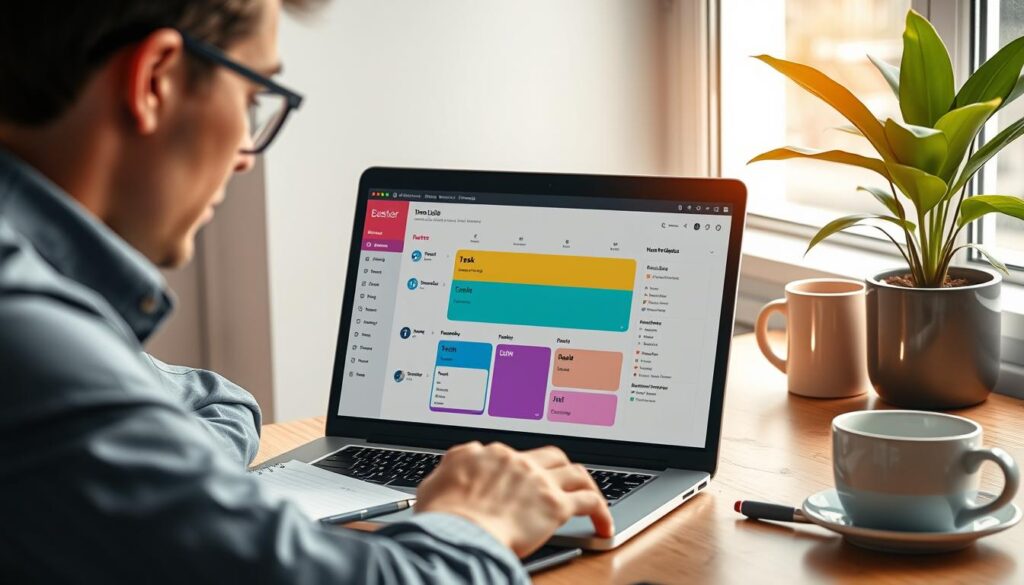
Google Calendar is free and synchronizes across all your gadgets. It lets you make many calendars, share them, and send invites. Even without internet, you can manage your events on its mobile app.
It easily connects with Gmail and Google Meet, making it simple to schedule and enter meetings. By time blocking, setting reminders, and laying out goals, your daily plans stay organized. It’s a great fit for those who value straightforward scheduling and teamwork.
Clockify
Clockify is a top no-cost time tracker for freelancers and small groups. It allows for both live and manual time recording. Handling projects, clients, and billable hours is straightforward with it. Plus, it provides reports to analyze how you spend your time.
With its ability to integrate with Trello, Asana, and more, Clockify is versatile. While free, its paid versions offer extra features like approvals and detailed reports. For simple tracking without fees, Clockify offers excellent advantages.
To save costs, merge these applications effectively. Utilize Google Calendar for planning and a free task app like Todoist or Trello for tasks. Activate Clockify for tracking work hours or when needing detailed reports. This strategy maintains an efficient and cost-effective set of tools, supported by budget-friendly apps.
Advanced Features of Time Management Apps
Advanced time management tools go beyond basic lists. They help in accurately measuring work and billing clients. They also identify where your team could be more efficient. These features transform activities into actionable steps.
Time Tracking
Time management apps often have built-in tracking and integrations. These features record the exact time spent on tasks. They’re used for improving productivity, accurate billing, and better workflow management. Users can pick between a running timer or manual hour entry. This choice depends on their preference for live tracking or logging hours after the fact.
It’s important to have features like idle detection and the ability to categorize projects and clients. Mobile tracking ensures your records are precise, even on the move. Tools from Clockify and Toggl Track provide detailed tracking. Meanwhile, Monday.com and Wrike offer time tracking through integrations.
Reports and Analytics
Turning tracked time into business insights is where reports and analytics come in. Expect to see timesheets, productivity charts, and project cost analyses. These reports make it clear how time is spent. Custom dashboards allow quick comparisons of users, projects, and time periods.
Analytics pinpoint issues, help adjust resources, and refine future project estimates. Look for features like exporting to CSV or PDF files. Also, automated reports can keep billing and payroll in check.
Automation and AI improve time tracking apps by organizing data and suggesting task times. This cuts down on manual corrections. For accurate client billing and compliance, detailed logs and reports are essential. When choosing an app, look at how data is exported and stored. Also, consider how easily you can filter reports by users, projects, or dates.
How to Choose the Right Time Management App
Choosing the right tool can save you hours every week. Start by listing what you need from task management and calendar apps. Different needs exist for small teams compared to solo users. Knowing exactly what you need makes picking the right app easier.
Identify Your Needs
Think about what makes your day tough, like missing deadlines, not knowing what to do next, or double-booking yourself. Link each problem to what feature could fix it. For instance, reminders and reporting help with missed deadlines, while complex projects may need subtasks and dependencies.
Figure out if you need apps for time tracking, invoicing, syncing across devices, or offline access. Look for apps that work with Google Calendar, Outlook, Slack, and email. This way, your new tool fits smoothly into your current setup.
Consider Your Budget
Look at different pricing options: free tiers, monthly fees per user, deals for big companies, and one-time buys. Free versions usually offer simple lists and reminders. Paying more often means getting more features like automation, detailed reports, extra storage, and better support.
Think about the return on investment by considering the time you’ll save and having fewer missed deadlines. If you bill by the hour, think about the extra billing time you could find. This helps decide if paying for a plan is worth it based on real benefits.
Try free trials and pilot programs before you decide. Test the app with typical tasks and see how your team likes it. Track how well the app is picked up and if it makes daily tasks easier.
Here’s a quick checklist to help you choose:
- Ease of use and quick to start
- Main features: tasks, subtasks, reminders, and time tracking
- Works with calendar apps, email, and Slack
- Available on web, iOS, Android, and desktop
- Security, rules for data, and moving data
- Can handle more users and admin features for teams
- Cost and the real benefits you get
| Criteria | What to Look For | Why It Matters |
|---|---|---|
| Ease of Use | Simple setup, clear interface, quick onboarding | Faster adoption, fewer training hours |
| Core Functionality | Tasks, subtasks, reminders, time tracking | Covers both everyday to-dos and complex projects |
| Integrations | Calendar apps, Slack, email, Zapier | Keeps tools in sync and reduces manual updates |
| Pricing Model | Free tier, per-user, enterprise, one-time | Matches budget and expected growth |
| Security & Compliance | Encryption, SSO, data residency options | Protects sensitive work and client data |
| Scalability | Admin controls, team templates, reporting | Grows with your team without retooling |
| Support & Training | Documentation, live support, onboarding help | Reduces downtime and speeds roll-out |
Getting Started with Time Management Apps
Starting is easier with a simple setup. Begin small with a few tasks and projects. Sync across your devices to keep everything matched. Connect your calendars to prevent double-booking.
Think “start fresh”: don’t move all old tasks at once. Aim for a simple, solid workflow you can improve over time. Spend a few minutes daily and weekly to keep things updated.
Creating Your First Task List
Define 3 to 5 main areas, like Work, Home, and Health. Start with tasks for today, this week, and this month. Use due dates and priorities to focus on what’s urgent.
Break big tasks into smaller steps. Use tags for better organization. Typing tasks like “Call dentist tomorrow at 10am” in Todoist can help. Use templates for tasks that repeat to save time.
Keep your list short at first. A smaller list helps avoid feeling overwhelmed and builds your trust in the system.
Setting Up Reminders
Pick reminders that fit the task: push alerts for urgent things, emails for tasks not due soon, and calendar notifications for meetings. Try reminders based on your location for errands.
Have a good reminder plan. Start with one main reminder at the right time. Only add more if really needed to keep from too many alerts. Link Google Calendar for reminders that make sense.
For alerts in your task app, like Todoist, turn on its reminders. Use simple alarms for short work intervals.
Make sure to sync across devices and link your calendars. This helps keep your tasks and events in line, especially when switching between devices.
Tips for Optimizing Your Use of Time Management Apps
To get more from your apps, start with small, regular habits. Begin each day with a short check. Do a weekly review to keep your tasks manageable and up-to-date. This method helps prevent your list from becoming too long.
Regularly Review Your Tasks
Start each day by checking your priority tasks. Each week, take a closer look at your list. Decide what to delay, delete, or if a deadline needs changing. This routine will keep you focused and stop the little things from building up.
Speed things up using filters and saved views in apps like Todoist and Asana. Look for tasks you can automate or use templates for. This can save a lot of time.
Prioritize Your To-Do List
Find a way to sort your tasks that suits you. Use the Eisenhower Matrix to tell urgent from important tasks. Choose your most important tasks (MITs) for focused effort each day. Group similar tasks and set aside high-focus times to work more effectively.
Make these choices stick by using labels, flags, and custom boards in your app. Many apps allow you to highlight MITs or create lists focused on action. This makes your plan easier to follow.
For tasks you do often, use templates and automation. Tools like Trello Butler, Asana rules, and Zapier can help by automating certain actions. They can assign tasks, move them when done, or set up recurring projects. This keeps things moving smoothly.
Only allow important notifications and set quiet times on your phone. This keeps distractions low and helps protect your focus. Make sure your app notifications really reflect what’s important to you.
Look into analytics or tracking reports once in a while. Use data from tools like Clockify or in-app reports to get better at estimating task time. Checking this regularly lets you adjust and use your apps more effectively.
User Feedback and Reviews of Time Management Apps
When you explore user reviews of time management apps, you’ll find lots of opinions. Short summaries let you quickly spot common trends. Here’s a glimpse into the regular compliments and issues users have with popular tools.
What Users Say About Top Apps
Todoist is loved for being simple and its great natural language input. People find it makes adding tasks quicker and helps keep their daily lists organized.
Trello is praised for its visual boards and flexible workflows. It’s said to help teams organize processes with hardly any setup time.
Asana is appreciated for its comprehensive project features that assist with complex tasks. Users talk about the clarity it brings to project roles and how it helps with meeting deadlines.
Google Calendar gets praise for its dependability and the ease of sharing it offers. Users believe it helps them schedule better and reduces the chance of booking the same time slot twice.
Clockify is a favorite for its no-cost time tracking tools. Freelancers and small teams say it helps them stay focused and bill more accurately.
Common Complaints and Issues
Feature-packed platforms like Asana and Monday.com can be daunting for newbies. They talk about needing time to see the benefits fully.
Limits on free versions are a common complaint. Users wish essential features weren’t locked behind paywalls.
Getting too many notifications is also a common problem. Users find this more distracting than useful.
Occasional syncing problems across different devices can confuse users. They notice when task lists on their phone don’t match their desktop.
The cost going up as teams expand is a repeated critique. Teams advise that the price can jump quickly with more members and features.
Privacy and security worries come up in some reviews. Users look for clear data management and strong controls for confidential projects.
How to Read Reviews and Choose Wisely
Combine star ratings and detailed comments in your decision-making. Ratings show popularity, while comments reveal how well the product works in real situations.
Find reviewers who share your needs. Focus on the latest reviews for the most current assessment of the product.
Consult trusted sources for impartial opinions: Apple App Store and Google Play, G2, Capterra, Product Hunt, and well-known tech sites. Compare them to find consistent strengths or issues.
| App | Common Praise | Frequent Complaints | Best For |
|---|---|---|---|
| Todoist | Simple UI, natural language input, quick task capture | Limited advanced project views on free plan | Individual productivity and freelancers |
| Trello | Visual boards, flexible workflows, easy onboarding | Can get cluttered for large projects | Creative teams and simple project tracking |
| Asana | Robust project features, clear role assignment | Steep learning curve, higher cost for full features | Mid-size teams and project managers |
| Google Calendar | Reliable syncing, easy sharing, solid scheduling | Basic task features compared with dedicated apps | Scheduling-focused users and calendar apps integration |
| Clockify | Free time tracking, simple timers, good reporting | Limited advanced project billing on free plan | Freelancers and teams needing time tracking |
Future Trends in Time Management Apps
The future of time management apps lies in smarter automation and better teamwork. AI will soon offer more than just reminders. Expect features like auto-suggested task times, smart meeting scheduling, and automatic item categorization. Tools such as Todoist’s Smart Schedule are leading the way with AI that predicts tasks and understands natural language.
Teamwork is getting a boost with real-time editing, enhanced comments, and easy video check-ins. Apps are improving team controls and supporting work from anywhere. This makes both scheduling and time tracking crucial for daily team cooperation.
Apps will work better together through enhanced automations and integrations with calendars, emails, and more. Meanwhile, keeping your data safe is a top priority for app makers. They’re focusing on meeting tough security standards and respecting privacy laws, especially for U.S. firms in Europe.
Here’s a tip: start slowly with AI features and manage your notification settings well. Pick tools that fit how you work. Look for apps that save you time while keeping your information safe. And choose platforms that grow with you, allowing you to tailor their automation features to your evolving needs.