

Over 80% of American workers use a productivity app every day. Yet, many spend time looking for files and managing their calendars.
Organizing digitally means keeping files, tasks, calendars, and messages neat. This helps you find stuff easily, reduces stress, and boosts productivity. Tools like Google Workspace, Microsoft 365, Notion, Todoist, and Trello are great. They work whether you’re at home or in the office.
This article will give you practical tips on digital productivity. You will learn about using apps, how to name and organize folders, and manage your time. These tips are great for Americans juggling work, family, and hobbies.
You will discover how to pick the best tools for online organization. Learn to set up a tidy digital workspace, make to-do lists you can trust, and sync your calendars. We’ll show you how to clean up digital messes, smartly use cloud storage, and automate boring tasks. Each part offers step-by-step actions to boost your digital productivity right away.
Understanding Digital Organization and Its Benefits
Begin by setting up a clear system to organize your digital files, messages, and tasks. This means arranging your documents, emails, photos, and more so they’re easy to find and use. For instance, you can store files in Google Drive, organize emails in Gmail, and manage tasks in Todoist.
Having good habits, such as consistent file naming and organized folders, saves time. When your digital spaces are optimized, everything works smoother, making your tasks quicker to complete.
Start with small steps. Use tools like Evernote or Notion for a lighter daily workload. It might require some time at first, but the effort pays off with simpler routines and automation benefits.
What is digital organization?
Digital organization is your method for keeping digital items in order. It’s about setting up where your files are stored, how your emails are sorted, and the way tasks move between apps.
View Google Drive documents, Dropbox shared folders, Gmail labels, and Todoist tasks as parts of a whole system. These tools help you locate and access your information quickly.
Why this matters
Being organized saves time. Research on workplace efficiency finds that searching for files eats up valuable minutes. This lost time can total up to hours weekly. Clear organization lowers your stress and lets you focus on important tasks.
A well-organized team works better together. Using shared folders and controlling versions in apps like Google Drive helps avoid redoing tasks. It’s easier to manage security when files are properly stored.
Key advantages of keeping digital files organized
Time savings: Organizing your files can cut down the time you spend searching each week. Using shortcuts and keeping names consistent helps you find things faster.
Improved focus: A clean digital area means fewer distractions. Linking your tasks in Todoist with set work times helps you concentrate and progress on projects.
Better collaboration: With shared folders in services like Google Drive, teamwork flows smoother. Clear rules on who can see files stop mistakes before they happen.
Reduced stress and compliance: Regularly sorting files and following simple rules for keeping them helps with personal and business records. It makes meetings with rules and regulations easier to handle.
| Benefit | Practical Example | Expected Time Impact |
|---|---|---|
| Time savings | Searchable Google Drive folders and consistent file names | Save 30–120 minutes per week |
| Improved focus | Task batches in Todoist paired with Pomodoro sessions | Fewer context switches, clearer work blocks |
| Better collaboration | Shared Dropbox folders with version comments | Lower rework, faster approvals |
| Reduced stress & compliance | Scheduled archiving and retention labels in Gmail | Easier audits, less last-minute scrambling |
Choosing the Right Digital Organization Tools
Finding the perfect apps can streamline your online life. Think about what needs you have. Note taking, keeping track of tasks, storing files, or automating tasks can be key. This guide will help you pick the right features and try them out first.
Popular apps and what they do
- Notion — It’s an all-in-one space for notes, databases, and simple project management. It’s great for making your own workflows.
- Todoist — This is a task manager that helps you focus. It comes with a way to put tasks in order and manage repeating tasks, boosting your personal productivity.
- Trello and Asana — They provide visual boards for managing team projects and individual tasks.
- Google Workspace (Drive, Docs, Calendar, Keep) — A suite of cloud tools for saving files, working together, and sharing things easily.
- Microsoft 365 (OneDrive, Outlook, Teams) — These are top-level tools for organizing documents and communication.
- Evernote, Apple Notes, Obsidian — Different choices for taking notes and managing knowledge, fitting various styles.
- Dropbox and Box — They offer secure cloud storage with easy share controls.
- Zapier and Make (formerly Integromat) — Platforms for automating tasks across different apps, cutting down on manual effort.
Free vs. paid tiers
Many people will find free tiers sufficient. They offer basic storage and features for single users with some limits on integration. This is enough for casual users of productivity apps.
Paid options bring more tools for working in teams, more storage space, better version tracking, control for admins, and faster support. If you’re part of a team or a heavy user, these extras are helpful. A good strategy: start with a free plan. Upgrade if you hit a limit or need more for your work.
Factors to weigh when choosing
- Make sure it works with your devices and systems like iOS, Android, macOS, and Windows.
- Look for whether it’ll work well with tools you already use, such as your calendar, email, and cloud storage.
- Don’t forget about security and privacy features, like two-factor authentication, encryption, and following standards.
- Choose apps that are easy to use and won’t take long to learn. Pick ones you can use every day.
- Think about the cost compared to what value it brings. Consider how the subscriptions, fees per user, and limits on storage work for you.
- Offline access and how well it syncs are important for working anywhere.
- Data mobility and options for exporting your info are crucial if you need to switch tools.
Practical selection steps
- Figure out what key tasks you need help with from organizational tools.
- Pick a few apps that seem to fit what you need.
- Try them out with actual work for a week or two.
- Check how well they integrate and test moving data to see if you can switch easily.
- Choose based on how easy they are to use every day, their security, and the total cost.
| Tool | Primary Use | Best For | Free Tier Notes |
|---|---|---|---|
| Notion | Notes, databases, lightweight PM | Custom workflows and personal knowledge bases | Generous free plan; limits on team collaboration |
| Todoist | Task management | Individuals who need recurring tasks and priorities | Free for basic use; premium adds reminders and labels |
| Trello | Visual boards for tasks | Small teams and visual planners | Free boards with power-ups; paid plans expand automation |
| Asana | Project and task management | Team coordination and complex projects | Free for small teams; paid for advanced reporting |
| Google Workspace | Cloud docs, storage, calendar | Real-time collaboration across devices | Free consumer apps; business plans add storage and admin tools |
| Microsoft 365 | Office apps, storage, communication | Enterprise needs and deep Office integration | Subscription required for full features; limited free web apps |
| Evernote / Apple Notes / Obsidian | Note capture and knowledge mgmt | Personal reference systems and writers | Basic free plans; advanced search and sync with paid tiers |
| Dropbox / Box | File storage and sync | Teams needing reliable syncing and sharing | Free storage limited; paid plans for larger quotas |
| Zapier / Make | Automation between apps | Reducing repetitive tasks across platforms | Free tasks available; paid plans enable complex workflows |
Setting Up Your Digital Workspace
Begin by listing your key tasks and deciding where to store everything. Include work projects, personal finance details, and family pictures. Then, pick a place for each item, like Google Drive for files you share, Notion for notes on projects, and Gmail for sorting emails. This method makes organizing online stuff easier and streamlines your daily tasks.
Designing Your Ideal Digital Environment
Start with a tidy desktop. Attach your most used apps to the taskbar for easy access. Only keep shortcuts you use daily. Organize your work into folders named Active, Reference, Archive, and One-time. This setup helps you focus better and keeps your digital space tidy.
Essential Folders and File Naming Conventions
Set up a clear structure for your folders. An example is: /Work > /Clients > /ClientName > /ProjectName > /Final, /Drafts, /Invoices. Name files starting with the date to make sorting easy. Like this: 2026-03-25_MarketingPlan_v3_Amy.pdf. Using dates first keeps versions organized and makes finding them quick.
Use simple abbreviations and skip spaces or weird symbols to avoid issues on different platforms. Put a README file in shared folders to explain your organizing system to your team. Having a README file makes it easier for others when someone new joins the team or when you switch tools.
Integrating Your Tools for Maximum Efficiency
Connect task lists with calendars to see deadlines clearly. For instance, link Todoist and Google Calendar. Attach files from the cloud to Trello or Asana so you don’t lose track of them. Use bookmark folders in your browser and apps like Pocket to keep research neat.
Make shared folders in Google Drive or OneDrive with clear roles. Automate updates between tools with Zapier or other build-in options, like making a task from an important email. Smart tags and metadata in tools like Notion help you find files faster and save time.
Choose a few online tools and stick with them. Using reliable apps consistently, along with a good folder and file system, boosts your productivity. It makes organizing digital stuff easier and your work more efficient.
Creating a Digital To-Do List
Building a digital to-do list makes work feel less chaotic and more manageable. Start with choosing a main app, set simple rules for using it, and mix in some time management methods to keep going. We’ll show you handy tools and tips you can try right now.
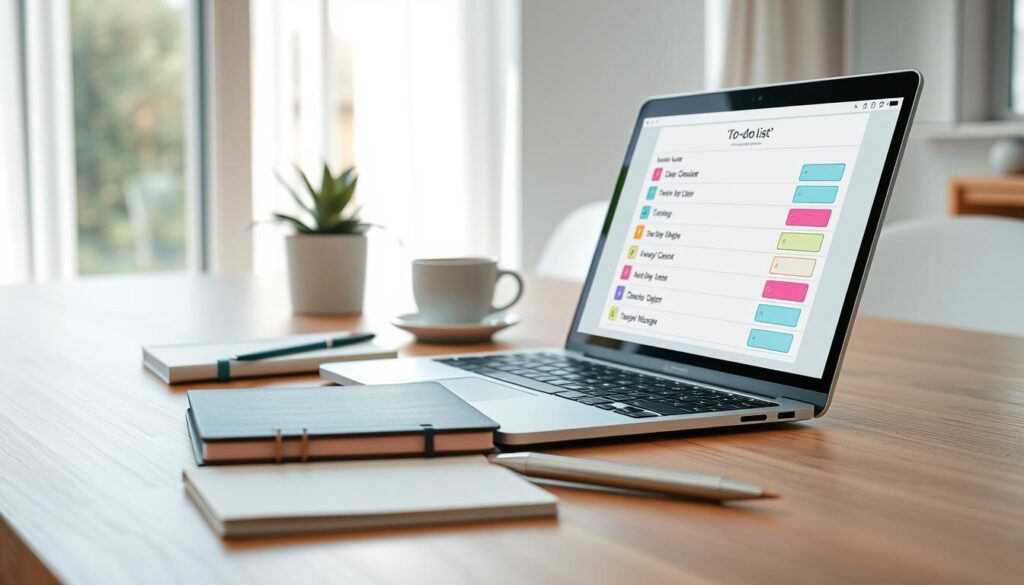
Top task apps help you capture ideas quickly, decide what’s most important, and start each day with a fresh list. For speed, Todoist is great with its quick input, priority levels, repeating tasks, and Karma points for tracking your progress. Microsoft To Do connects to Outlook, focusing your day with its My Day feature. TickTick offers a Pomodoro timer and tracking for your habits to help you find a rhythm. Try Asana or Trello for team projects, or Notion for integrating tasks and notes on project pages.
Sort tasks with the Eisenhower Matrix into urgent or important. This helps you decide whether to do, schedule, delegate, or drop tasks. Focus on 1–3 Most Important Tasks (MITs) each day to hit major goals. Use time blocking to dedicate specific times for different types of tasks, preventing the loss of focus from jumping between tasks.
Set up regular chores, like paying bills or weekly planning. Slice large projects into smaller tasks with clear next steps. Use reminders and triggers based on time or place for specific tasks. Have a quick planning session each morning or evening to prioritize your day.
Pair your task manager with apps that track your progress. Inside TickTick, use Pomodoro sessions to stay focused. Organize your tasks with folders, labels, or boards for quick access. Once a week, review your list and clear out tasks that are no longer relevant.
Here’s a quick guide to pick a main tool and match it with a strategy that suits how you work.
| App | Best For | Key Feature | Suggested Technique |
|---|---|---|---|
| Todoist | Individual task capture | Priority flags, recurring tasks, Karma | Daily MITs + weekly review |
| Microsoft To Do | Inbox and Outlook users | My Day integration with Outlook | Time blocking + plan-the-day ritual |
| TickTick | Focus and habit builders | Pomodoro timer and habit tracker | Pomodoro cycles + recurring tasks |
| Asana / Trello | Team collaboration | Boards and project-level tracking | Kanban flow + delegated tasks |
| Notion | Project docs with tasks | Embed tasks inside pages | Project pages + time management techniques |
Managing Your Calendar Digitally
Centralize your main commitments in one calendar. Also, show work, personal, and family events through synced feeds. Google Calendar and Outlook Calendar can display multiple accounts at once. Use Microsoft Exchange or CalDAV for better syncing across all platforms.
Synchronizing Multiple Calendars
Choose one main calendar for important events and add others to it. Make sure it syncs across your smartphone, desktop, and tablet. This way, you won’t double-book yourself. Use colors to differentiate meetings, focus times, and personal activities. For Apple users, Fantastical on macOS and iOS shows layered calendar views well.
Tips for Scheduling
Mark focus times clearly, for instance, as “Deep Work: Project X.” Treat them like official meetings to avoid interruptions. Also, set aside consistent times when you won’t schedule meetings. This helps protect your project work time.
Add some break time between meetings. This is for prep or follow-up. Create templates for regular events, like weekly check-ins. These methods help manage your time better every day.
Setting Reminders and Notifications
Set reminders based on what the event is. Use 10–15 minutes for short meetings and a day’s notice for big events. Too many alerts can be overwhelming, so try getting a daily summary in the morning or an email digest from your calendar app.
Link your calendar reminders with productivity apps for better follow-up. For task management from your schedule, use Todoist or Microsoft To Do. Automate task creation from events when you can. This makes staying organized easier.
| Use Case | Recommended Tool | Best Practice |
|---|---|---|
| Cross-device sync | Google Calendar / Microsoft Exchange | Sign in to the same account on phone, tablet, desktop |
| Mac and iPhone layered view | Fantastical | Use calendar sets and color-coded calendars |
| Work and personal separation | Outlook Calendar | Keep a primary calendar and overlay others via subscriptions |
| Task follow-up integration | Todoist / Microsoft To Do | Auto-create tasks from events or add a reminder link |
Follow easy rules: one main calendar, sync your devices, use colors for different layers, and set reminders that match how important an event is. Online tools and apps can help follow these rules and make your calendar dependable.
Decluttering Your Digital Life
Start with a short, easy-to-follow plan for each week. Good digital habits quickly reduce clutter. Stick to simple rules for fast, consistent choices.
Strategies for Reducing Digital Clutter
Use the one-touch rule: either do, delegate, defer, or delete emails or files right away. For quick tasks, if it takes less than 2 minutes, do it immediately. Longer tasks should go to a task app to avoid a pile-up and stay focused.
Stop following newsletters that don’t interest you anymore. Use the unsubscribe link or tools like Unroll.Me for ease. Get rid of extra photos and files using Google Photos or find duplicates on your computer.
Reduce desktop shortcuts and get rid of apps you don’t use to lessen visual clutter. Use a few online tools that work everywhere, so you don’t need to switch between different apps.
Archiving Old Files and Emails
Make an archive system for old projects with names like 2024_Archive_Project_Name. Move done emails to these folders to keep your inbox clean.
Back up essential files somewhere else, like an external hard drive or cloud service. If you can, use services like Google Drive to keep a history of changes for fixing mistakes.
Archive documents older than a year and toss drafts over six months old. Organize them with labels or folders for easy finding without mess.
Maintaining an Organized Digital Space
Plan regular cleaning times: once a month for emails and every three months for files. Use automation for cleaning out temporary files and browser cache.
Make sure everyone on your team uses the shared drive correctly to prevent mess. Keep a Quick Access folder for urgent items and tidy it out weekly.
Try cleanup tools like Google Photos for photos, CleanMyMac, or CCleaner for computers, and storage tools on phones. Combine these with good habits and tips for ongoing neatness.
Using Cloud Storage Effectively
Cloud storage revolutionizes the way you save and share files. You can access your work from anywhere, with devices always in sync. This means less risk of losing important documents and easier file management.
Benefits of Cloud Solutions
Tools like Google Drive and Dropbox offer collaboration and easy file tracking through version history. Google Docs and Microsoft Word online allow real-time editing by multiple users. You can easily undo changes thanks to version history.
Sorting and Organizing Files in the Cloud
Keep your cloud structure similar to your computer’s to avoid confusion. Use clear names for files and folders. This makes finding what you need quick and easy.
Add extra details to your files with tags and descriptions in platforms like Google Drive. For group work, use shared drives with clear permissions. This helps manage your projects better.
Sharing and Collaborating with Others
Only give people access they really need. Some may just need to view files, while others may need to edit. For confidential info, use share links that expire and require a login.
Use comments for suggestions during reviews rather than changing the original file. A README file can guide others on how to use shared folders properly. This ensures smooth collaboration.
Practical Setup and Redundancy
Choose a cloud service that fits your needs, like Google Drive for easy search. Back up your files both locally and on another cloud service for extra safety.
Online tools can automate file management tasks. Keeping your digital space tidy involves regular cleanups and consistent file naming. This makes team work smoother and more effective.
Automating Your Digital Organization
Automation can make your work easier. It keeps things regular and frees you up for creative tasks. It organizes your files, manages emails, and turns busywork into helpful flows.
Tools for automation
Choose tools that you are comfortable with. Zapier and Make (Integromat) link many apps easily. IFTTT is great for simple tasks like social posts or device actions. Tools like Gmail filters, Outlook rules, and Apple Shortcuts are powerful and easy to use.
Don’t forget about direct connections. With integrations for Todoist, Trello, and Notion, you can easily link apps. These help you automate your workflow smoothly.
How automation saves time
Automation cuts out routine steps and mistakes. For instance, important emails can automatically become tasks. Attachments can be saved to the cloud and noted in a spreadsheet by themselves. Calendar events can link to projects, turning meetings into tasks.
Automation makes finding files easier. It keeps everything organized and up-to-date. This makes your apps more useful.
Examples of useful automation
- Move invoice emails to a finance folder and remind yourself to pay in Todoist.
- Make Google Calendar events from new Trello tasks.
- Track your completed tasks in a Google Sheet for productivity analysis.
- Save certain emails’ attachments to Google Drive and log them in a spreadsheet.
Safety tips for reliable flows
First, try automations in a test account. Keep an eye on them and fix errors quickly. Use clear names and simple setups to solve problems faster.
Begin with small steps. Use built-in features and add Zapier or IFTTT as needed. Improve your automation to boost your efficiency.
Maintaining Your Digital Organization
Keeping your digital world organized is a continuous task. Set up a routine: start with a quick daily inbox review to check your day’s schedule and important tasks. Follow up with a weekly 30-60 minute cleanup to sort emails, update projects, and archive any finished tasks. Lastly, do a deep clean every month or quarter to check on folders, shared drives, and subscriptions.
Regular Check-ins and Updates
Checking in daily helps you tackle small problems before they get big. Weekly reviews help you adjust and refresh your priorities. With monthly or quarterly audits, you can delete outdated files and make sure your tools and automations are still working for you. It’s smart to have a plan for moving your information to different platforms without losing any data.
Adapting to Changes Over Time
Changes in your job, your team’s size, or projects mean it’s time to look over your workflows and tools. Switch systems only if it truly benefits you in the long run. Getting input from teammates on shared systems helps. Making updates to how you organize and name files should reflect your current needs.
Building Lasting Habits for Organization
Start with simple daily rituals, like a quick end-of-day checklist, and a weekly session to plan ahead. Add a monthly nudge on your calendar to declutter. Combining habits, celebrating small successes, and setting limits on app use can help. Train newcomers with a brief guide covering how to name, tag, and organize files properly.
Taking small, steady steps towards organizing your digital space can bring big benefits. It can sharpen your focus and cut down stress. Try making one change this week, like a single weekly review or a new naming convention. This is a great way to start forming durable habits and enhancing digital planning and organization.