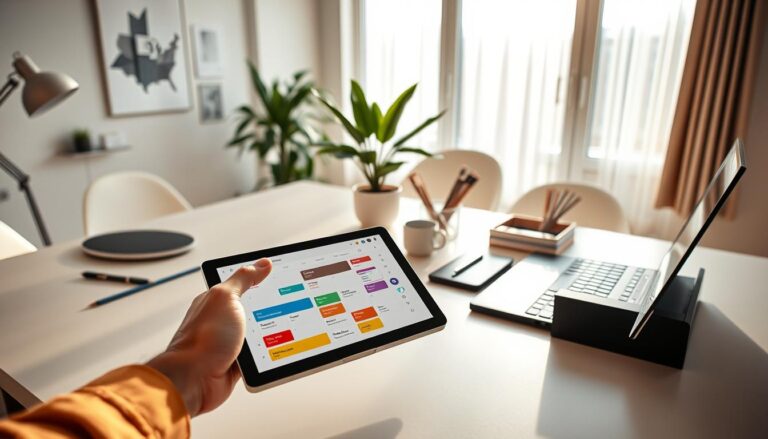

Over 80% of American homes now have at least one smart device. This shows how tech quietly changes our daily routines.
We use tech tools daily to save time and make things easier at work, home, and on trips. Smart speakers, wearables, budgeting apps, and VPNs help us stay organized and productive.
This article will talk about gadgets like the Amazon Echo, Google Nest, Apple Watch, and GPS systems. It will also cover software like Microsoft OneNote, Evernote, Todoist, Mint, 1Password, and NordVPN. You’ll learn what to look for in these tech tools. And get advice on choosing devices that fit your life, budget, and need for privacy.
You’ll get useful tips based on features from big names like Amazon, Google, and Apple. Plus experiences with top app providers. By the end, you’ll know which tech tools can make your life easier. And understand the trade-offs for convenience, comfort, health tracking, and security.
1. The Power of Smart Speakers
Smart speakers are top-notch tech tools for your home. They let you control music, timers, and much more by just speaking. They can also connect to lights, locks, and thermostats, making life easier.
What Can Smart Speakers Do for You?
They allow you to play music on Spotify or Apple Music and set timers while cooking. Voice assistants like Amazon Alexa and Google Assistant can make calls and read news for you. They are especially helpful for those with mobility issues, offering easy voice control.
These speakers can work with other apps and services. This means you can handle shopping lists and security cameras with your voice. They can even recognize different voices for personalized use.
Popular Options: Amazon Echo and Google Nest
Amazon Echo has various models like Echo Dot and Echo Show. They have tons of Alexa skills and support many external devices. The Echo Show even has a screen for video calls.
Google Nest offers models such as Nest Mini and Nest Hub. They are great at working with Google’s services and understanding what you say. Nest Hub adds a screen for easy control of your smart home.
Both options have privacy features to turn off microphones or cameras. There’s a range of prices and features, from affordable to high-end. Your choice depends on your tech environment and if you want a screen.
For the best use, put speakers in central areas and connect them to important devices. You can adjust settings and profiles with their apps. This setup makes your smart speakers a valuable part of your home tech.
2. Streamlining Task Management with Apps
Task management apps are crucial in today’s tech environment. They organize your tasks into actionable plans on your devices.
Top Task Management Apps to Consider
There are many productivity apps to choose from. Todoist offers simplicity with its list-making, recurring tasks, and priority flags. Trello features visual Kanban boards for easy workflow tracking. Asana provides complex project planning with timelines and team roles.
Microsoft To Do integrates with Microsoft 365 for easy task management. Notion combines notes, databases, and tasks, making it very adaptive.
Search for apps that allow team collaboration and work across all devices. Look into how they blend with calendars and emails, and their pricing. Many have free versions with essentials, and paid plans for more features.
How to Choose the Right App for Your Needs
Choose an app based on task complexity and team size. Use Todoist or Microsoft To Do for simple tasks. Pick Trello for visual tracking of projects. Asana is great for detailed team projects.
Notion is ideal for combining extensive notes with tasks.
Check if the app is easy to use and works offline. Look for integration with tools like Google Calendar and Slack. Think about your budget and if automating tasks is important for you. Zapier and IFTTT can help with repetitive tasks.
Start with just the key features. Schedule a time each week to review your tasks. Use labels, tags, and deadlines to stay organized. Automate common tasks and use templates for recurring projects to save time.
3. Smart Home Devices to Enhance Comfort
Smart home devices make everyday life more convenient. They help save energy, improve security, and streamline routines. By combining electronic accessories with home automation, tasks become as easy as a tap or voice command.
Essential Smart Devices for Your Home
Begin by installing smart bulbs, like Philips Hue or LIFX, to create mood lighting and energy savings. Next, invest in smart plugs from TP-Link Kasa or Wemo. They automate lamps and appliances effortlessly. Also, consider smart locks from August or Schlage Encode for secure, keyless entry and guest access.
Don’t forget to add smart cameras and doorbells from Ring or Arlo. They keep an eye on your home and send alerts. A smart hub or bridge is key for connecting your devices. It creates routines that sync lights, cameras, and thermostats as you come home.
Benefits of Smart Thermostats
Choose a smart thermostat from Nest or ecobee to improve comfort and lower bills. Nest adjusts to your routine for better temperature control. Ecobee uses sensors to ensure comfort in rooms you use most.
These thermostats give you remote control, energy usage reports, and maintenance alerts. They’re compatible with Alexa, Google Assistant, or Apple HomeKit for easy integration into your smart home.
Always remember, security is crucial for smart devices. Use a strong Wi-Fi password, turn on two-factor authentication, and update firmware regularly. Choose brands with reliable software updates and straightforward privacy policies. This way, your devices safeguard your comfort and your data.
4. Maximizing Productivity with Office Tools
Boosting daily productivity is easy with the right software and tools. Today’s technology helps reduce unnecessary work, keep files organized, and make decisions faster. Just focus on a few tech tools and learn them well to get great benefits.
Must-Have Productivity Software
Begin with essential suites like Microsoft 365 and Google Workspace. They’re great for creating documents, spreadsheets, and handling emails. Their features like templates, coauthoring in real time, and cloud autosave help avoid mistakes and save time. Then add Slack for messaging and Zoom for video calls. For storing files online and working anywhere, use services like OneDrive, Google Drive, or Dropbox.
Using templates makes regular tasks quicker. A strong search function lets you find files easily. Coauthoring and autosave prevent losing work and mix-ups. With mobile apps, you can keep working even away from your desk.
Benefits of Collaboration Tools
Team software offers live editing, central communication, and keeps file versions straight. Features like shared calendars and project tracking keep everyone on track. And with integrations, you switch apps less and keep everything in one spot.
Slack keeps updates in one place with channels and app integrations. Microsoft Teams merges video calls and chat within Microsoft 365. Google Docs has comment threads and workflows for quicker document reviews.
Expect quicker decisions, less email mess, and clearer responsibilities with these tools. They bring better openness and efficient transitions in teamwork when used right.
Practical Adoption Tips
- Stick to one main suite to stop confusion between Microsoft 365 and Google Workspace features.
- Train everyone on the important features and shortcuts.
- Use shared drives and templates for consistent documents.
- Establish clear communication rules: how quickly to reply and what channels to use for different kinds of messages.
5. Everyday Health Tech Tools
Everyday tech tools are changing how you track and improve your health. They make it easier to notice trends, set targets, and share data with your doctors. You can build small, daily habits that fit your life.
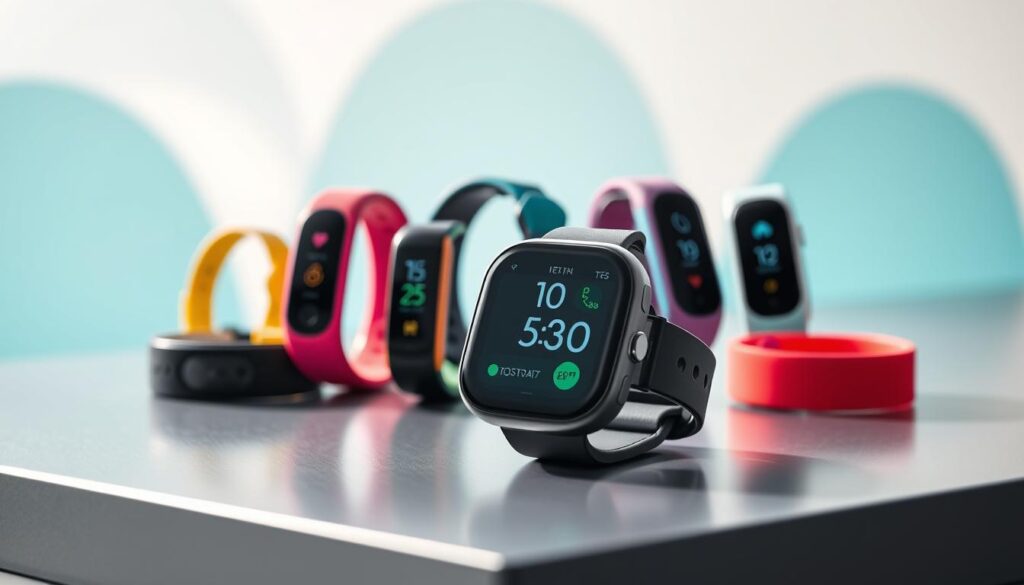
Wearable Fitness Trackers to Monitor Your Health
Wearable fitness trackers meet different needs. The Apple Watch has ECG, fall detection, and works well with iPhone health apps. Fitbit is great for tracking your activity and sleep without spending much. Garmin offers detailed GPS and sports data for athletes. Oura Ring tracks your sleep and readiness in a small design.
These devices keep track of your steps, heart rate, sleep, VO2 max, and exercise. Some Apple Watch models warn you about unusual heart rhythms. Think about battery life and if your phone is iOS or Android before choosing.
Apps for Nutrition and Wellness
Nutrition and wellness apps help put your data to use. MyFitnessPal has a huge food database and a barcode scanner for tracking calories easily. Cronometer focuses on tracking vitamins and minerals accurately. Noom helps change behaviors with personal coaching. Headspace and Calm offer meditation tracks for less stress. PlateJoy makes meal planning and shopping simple.
Many apps work with your fitness devices to track calories burned and eaten. You can connect your diet apps to your devices. Some wellness apps can share info with your doctors or give you reports to bring to them.
Remember to think about privacy and safety. These tech tools should support, not replace, doctor’s advice. Check who can see your data and limit access. Always talk to your doctor before making big changes based on what these tools tell you.
| Tool | Key Features | Best For | Battery / Compatibility |
|---|---|---|---|
| Apple Watch | ECG, fall detection, deep iPhone integration | iPhone users wanting health alerts | 1–2 days / iOS |
| Fitbit | Activity tracking, sleep insights, affordable models | Everyday activity and sleep tracking | 4–7 days / iOS & Android |
| Garmin | Advanced GPS, sports metrics, robust tracking | Runners, cyclists, outdoor athletes | 5–14 days (varies) / iOS & Android |
| Oura Ring | Sleep stages, readiness score, discreet design | Sleep-focused users wanting subtle wearables | 4–7 days / iOS & Android |
| MyFitnessPal | Large food database, calorie and macro tracking | Calorie tracking and weight goals | N/A / iOS & Android |
| Cronometer | Micronutrient detail, custom targets | Users tracking vitamins and minerals | N/A / iOS & Android |
| Noom | Behavioral change coaching, habit-based plans | People seeking guided weight management | N/A / iOS & Android |
| Headspace & Calm | Guided meditations, sleep stories, stress tools | Mindfulness and stress reduction | N/A / iOS & Android |
| PlateJoy | Personalized meal plans, shopping lists | Busy households wanting healthy meals | N/A / iOS & Android |
6. Staying Organized with Digital Notebooks
Keeping your ideas and tasks sorted on digital devices makes life easier. Digital notebooks let you gather notes, images, and web pages in one spot. This way, you can quickly find what you’re looking for. Choose tools that suit your workflow and gadgets.
Exploring Notetaking Apps: Evernote vs. OneNote
Evernote is great for strong search features and saving web content. It can find words inside pictures and PDFs, perfect for keeping receipts and research well-organized. With Evernote, you can link related items across different notebooks using tags.
OneNote offers a flexible setup that mimics paper, supporting pens for sketches or handwritten notes. It integrates with Microsoft 365, keeping your notes and files together. This is ideal for those who like to draw or write by hand and need seamless access to their work.
Look into Notion for notes in a database style or Apple Notes for a seamless experience on Apple devices. Each app works best for certain tasks, so try a few to see what helps you most.
Tips for Effective Digital Note Organization
- Use consistent notebook and tag conventions to speed up retrieval.
- Create templates for recurring notes, such as meeting minutes and project briefs.
- Choose search-friendly titles and add metadata for quick filtering.
- Leverage web clippers to save articles, and use OCR to make scanned documents searchable.
- Back up notebooks regularly and run a weekly review to declutter and reorganize.
Digital notebooks are perfect for personal journals, meeting notes, research, recipes, and team projects. They allow you to keep everything up-to-date across your devices. This way, your info is always ready on your phone, tablet, or laptop.
| Feature | Evernote | OneNote |
|---|---|---|
| Organization Style | Notebook + tags for cross-linking | Notebooks, sections, freeform pages |
| Search | Strong OCR, image and PDF search | Good search, excels with handwritten notes |
| Clipping & Web Capture | Robust web clipper for articles and snippets | Clipper available, integrates with Edge and OneNote Web |
| Integration | Cross-platform apps, many third-party integrations | Deep Microsoft 365 and Office integration |
| Best For | Search-heavy workflows and research | Visual note layouts and Office-centric work |
7. Financial Management Tools for Modern Living
Everyday tech helps us manage our money easily. Mix and match apps to track expenses, save money, and make quick payments. Choose tools that fit your daily life. And always secure your accounts with strong passwords and two-factor authentication.
Budgeting Apps to Simplify Your Finances
Budgeting apps help you see where your money goes. Mint is super if you’re looking for a free option that sorts your spending automatically. YNAB teaches spending based on what money you have now and offers great learning resources. Personal Capital combines budget tracking with monitoring your investments and net worth.
Look for features like combining accounts, categorizing spending, getting bill alerts, setting goals, and analyzing investments. Turn on alerts to avoid overdraft fees. Check your spending categories each month. Remember to use a different password for each app and turn on two-factor authentication for better security.
Using Payment Apps for Seamless Transactions
Payment apps let you transfer money fast and make shopping easier. Venmo makes sharing expenses easy with friends. Zelle sends money directly between banks without holding a separate balance. PayPal is great for shopping at a lot of stores, while Apple Pay and Google Pay are top choices for touch-free shopping and keeping your cards in one place.
Payment apps are perfect for sharing expenses like rent or meals, paying small businesses, buying without touching card machines, and moving money between your accounts quickly. Be aware of any fees for instant transfers or using a credit card. And pick the option that saves you the most on fees.
| Tool | Best for | Key Features | Security Tips |
|---|---|---|---|
| Mint | Free budgeting and tracking | Automatic categorization, bill reminders, goal tracking | Use strong password, enable two-factor authentication, review connected accounts |
| YNAB | Hands-on budgeting education | Zero-based budgeting, workshops, real-time sync | Regularly back up budget data, enable 2FA, limit device access |
| Personal Capital | Budgeting plus investments | Net worth tracking, investment analysis, retirement planner | Monitor account permissions, use strong authentication methods |
| Venmo | Social peer-to-peer payments | Split payments, social feed, easy friend payments | Keep transactions private, use PIN or biometric lock |
| Zelle | Instant bank-to-bank transfers | Fast transfers, no app balance, linked to bank | Verify recipients, confirm bank details before sending |
| PayPal / Apple Pay / Google Pay | Merchant payments and contactless checkout | Card storage, contactless in-store payments, buyer protection | Remove unused cards, enable device security, monitor transactions |
Set positive financial habits: Pay bills automatically when it’s secure, check your spending each month, keep track of regular subscriptions, and use budgeting app alerts to spot problems early.
8. Digital Security Tools You Need
It’s crucial to have a plan for staying safe online every day. Form good habits and choose a few trustworthy apps to decrease the chances of security breaches and data loss. Start with tools that help maintain safe online practices easily.
Password Managers: Your Online Safety Net
Password managers help by creating and storing complex passwords, so you’re not tempted to use the same simple ones everywhere. With services like 1Password and LastPass, your login info is filled in automatically, and your password vault is synced across your devices.
They also provide a secure place for sensitive notes and TOTP codes for two-step verification. This not only speeds up logging in but also boosts security by using different passwords for each account.
Just remember a few key tips: pick a strong master password, use biometric unlocks if you can, turn on two-factor authentication for your vault, and always have backup recovery keys. Password managers simplify secure online habits and integrate seamlessly with other tech tools you use daily.
VPNs: Protecting Your Privacy Online
VPNs make your internet connection private on public Wi-Fi, hide your IP address, and give you access to region-locked content. With popular choices like NordVPN and ExpressVPN, you can protect multiple devices and connect to servers all over the world.
Look for a service that has passed independent security checks, promises not to keep logs of your activity, has fast servers, and is easy to use. These features are especially important if you often stream videos or work from different locations.
Remember, VPNs have their limitations. They secure your connection but can’t prevent tracking by websites or apps once you’ve logged in. They don’t replace the need for antivirus software, cautious app permissions, or practicing good online privacy habits.
To further enhance your security, keep your software up to date, use full disk encryption, enable two-factor authentication everywhere you can, and check app permissions often. These steps significantly boost your security without much extra work.
| Tool Type | Example Services | Key Benefits | Best Practice |
|---|---|---|---|
| Password managers | 1Password, LastPass, Bitwarden | Unique complex passwords, autofill, vault sync, secure notes | Strong master password, enable 2FA, biometric unlock, backup recovery key |
| VPNs | NordVPN, ExpressVPN, Surfshark | Encrypts traffic, masks IP, geo-unblocking, safer public Wi‑Fi | Pick audited no-logs provider, check speed and server coverage, use on all devices |
| Device & system tools | Built-in OS encryption, secure backups | Protects local data, aids recovery after loss or theft | Enable full-disk encryption, schedule encrypted backups |
| Account protections | Platform 2FA apps and hardware keys | Blocks unauthorized access, adds second verification layer | Use authenticator apps or hardware keys where supported |
9. Travel Made Easy with Tech Tools
Travel becomes easier with the right tech tools. Smart apps manage itineraries, bookings, and local transport, letting you enjoy your journey. Here are some handy options and tips for a smoother trip.
Essential Travel Apps for Every Journey
TripIt combines your flight and hotel bookings into one shareable itinerary. Airbnb offers unique places to stay and local activities. Booking.com and Expedia provide more lodging and package options.
Skyscanner and Hopper find low flight prices and predict drops. Airline apps offer mobile boarding and alerts for delays. Uber, Lyft, and Citymapper simplify city travel.
Download a currency converter and enable mobile check-ins when you can. Keep offline backups of your bookings. Push notifications update you on flight changes. Use cloud storage for important docs and also keep paper copies.
The Role of GPS and Navigation Tools
Google Maps gives wide-area maps, transit routes, and traffic info. Waze uses user reports for quicker rerouting. For off-grid areas, Garmin and similar GPS devices are reliable.
Before leaving, download maps for use offline and save regions for lengthy trips. Navigation apps offer turn-by-turn directions, making driving in new places easier. They also work with Android Auto and Apple CarPlay.
Always carry a power bank. If solo, share your location with someone you trust. Ensure your data plan covers travel to keep your maps and tools online when needed.
10. Educational Apps for Lifelong Learning
Nowadays, tech tools include amazing educational apps for easy and affordable learning. You can study a course on Coursera or edX, learn a language with Duolingo, or visit Khan Academy for free basics. These platforms bring technology and innovation to your fingertips, letting you learn anywhere.
Top Learning Apps to Expand Your Skills
Choosing the right app depends on your goals. Coursera and edX give you courses and certificates from top schools. Udemy offers lessons on specific skills from experts. LinkedIn Learning is great for career skills, and Khan Academy has free K–12 learning.
Duolingo makes learning languages easy and enjoyable. Look for apps that are self-paced and offer mobile access. Also, check if you can earn credentials or join community forums.
How Technology is Changing Education
Modern trends like microlearning and AI-driven feedback are changing learning. Video lectures and quizzes mix passive with active study. For adults, it means you can learn flexibly, upskill, and reach instructors from home.
Be cautious of course quality, stay disciplined, and check accreditations. This is crucial when credentials are important for your career.
To benefit from educational apps, set clear goals and maintain a steady study schedule. Mix videos with practical projects. Then, share your projects or certificates online to turn learning into opportunities. This approach leverages modern tech for lifelong learning.