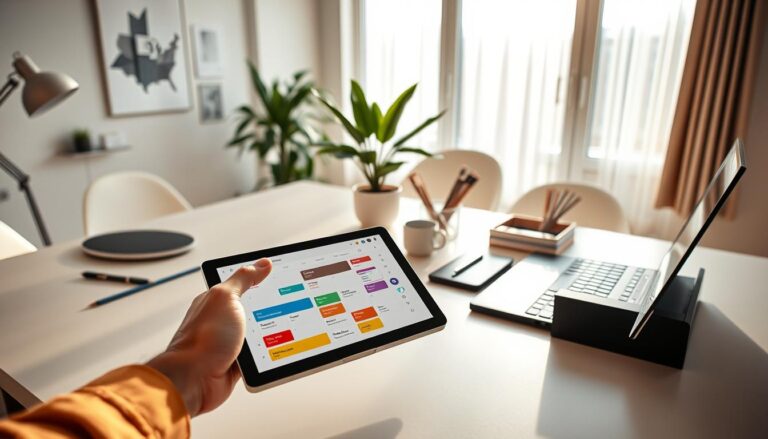

63% of Americans say they feel overwhelmed by daily tasks at least once a week. Switching to digital planning tools can cut that stress in half for many.
This article explains how digital planners and calendars can make your day smoother. They boost focus and prevent tasks from piling up. You’ll get tips on picking the right tools, going digital, and setting simple routines.
You’ll also learn about the best apps like Todoist, Trello, Notion, and Google Calendar. Plus, there are tips for morning planning, weekly reviews, and custom alerts. By the end, picking a tool that suits you and avoiding common mistakes will be easy.
The focus is on easy, U.S.-friendly steps for using online scheduling and digital planners. This means you spend less time organizing and more time doing.
What Are Digital Planning Tools?
Digital planning tools are software and apps designed to help you schedule and manage tasks. You can track appointments, notes, and projects across multiple devices. These tools replace paper planners. They offer real-time syncing, recurring tasks, and a searchable work record.
These tools have many uses. They let you organize daily tasks, set deadlines, and work with teammates. You can also automate reminders. They support methods like Getting Things Done, aiding in focused work and team projects.
Definition and Purpose
These solutions include mobile and web apps, browser extensions, and desktop applications. They bring together task lists, calendars, notes, and project boards. This way, you can easily plan your day. They often integrate with email and cloud drives, simplifying your workflow.
Virtual organization tools centralize your information. By keeping everything in one place, they cut down on task switching. This makes moving between tasks smoother.
Types of Digital Planning Tools
Different tools meet different needs. Task managers like Todoist focus on to-do lists and priorities. Kanban boards, such as Trello, offer a visual overview of work stages. All-in-one platforms like Notion merge notes, databases, and tasks into one flexible tool.
Calendar apps like Google Calendar are great for scheduling and time blocking. There are also automated task platforms, habit trackers, and software for booking appointments. Tools such as Zapier and IFTTT link apps together to automate tasks.
| Tool Type | Primary Use | Typical Feature | Example |
|---|---|---|---|
| Task Manager | Manage to-dos and priorities | Recurring tasks, labels, priorities | Todoist |
| Kanban / Project Board | Visual workflow and project stages | Drag-and-drop cards, checklists | Trello |
| All-in-One Workspace | Combine notes, databases, and tasks | Templates, relational databases | Notion |
| Calendar App | Schedule events and block time | Invites, reminders, calendar layers | Google Calendar |
| Appointment Booking | Client scheduling and confirmations | Booking links, automatic reminders | Online scheduling software |
| Automation / Integration | Connect and automate apps | Triggers, actions, multi-step workflows | Zapier, IFTTT |
Benefits of Using Digital Planning Tools
Digital planning tools can change how you work each day. They turn scattered notes into clear plans. They cut setup time, and help you focus on high-impact tasks.
Increased Productivity
When you prioritize tasks and use checklists, you complete more important work. Features like recurring tasks, templates, and smart scheduling remove repetitive setup steps. This keeps momentum going.
Integration with productivity tools such as Pomodoro timers and focus apps deepens work periods. This combo boosts output and makes progress clear.
Enhanced Time Management
Time-blocking features and integrated calendars help you avoid overbooking. Visual layouts make it easier to see your day quickly.
Reminders and automated scheduling cut down missed appointments and late starts. Built-in analytics show where your time goes, so you can adjust accordingly.
Better Organization
Searchable notes, tags, labels, and nested projects reduce mental clutter. It’s easier to find what you need quickly.
Cross-device sync keeps your plans updated across all devices. Email and cloud storage integrations centralize files for fast access.
Stress Reduction
Using a digital system lowers anxiety and cognitive load. When your agenda is in reliable software, your mind is clearer.
Routine planning, like daily and weekly reviews, builds control and clarifies priorities. Consistent reminders and schedules reduce last-minute panic.
| Benefit | Key Features | How It Helps You |
|---|---|---|
| Productivity | Checklists, recurring tasks, templates | Reduces setup time and boosts focus on high-impact work |
| Time Management | Calendars, time blocking, analytics | Prevents overbooking and reveals where your time goes |
| Organization | Tags, nested projects, cross-device sync | Makes information easy to find and reduces mental clutter |
| Stress Reduction | Automated reminders, routine reviews, trusted lists | Lowers anxiety by offloading tasks and creating predictability |
Popular Digital Planning Tools You Should Consider
Choosing the right digital planning tools can smooth out your day. Below are four key options: task lists, boards, workspaces, and calendars. These tools work well with others, helping you create a steady routine.
Todoist
Todoist keeps tasks simple and clear. You can set up projects, label them, prioritize tasks, and even use recurring due dates like “every Monday.”
The app stands out for its easy-to-use design and syncing across devices. It works with Google Calendar, Slack, and Zapier. This lets you connect Todoist to other online tools easily.
It’s great for personal tasks or small team projects where keeping things clear is key.
Trello
Trello uses a Kanban-style approach, showing tasks as cards. This makes managing your workflow straightforward with its drag-and-drop feature.
Its main strengths are visual planning and extra features like a calendar view. Trello connects with Slack and Google Drive. This makes it easier to use with other apps and software.
If you need a visual way to manage projects, content calendars, or house chores, give Trello a try.
Notion
Notion is an all-in-one workspace that combines notes, databases, tasks, and more. It lets you create customizable pages and databases to organize your work.
It’s great for both teams and individuals thanks to its collaboration tools. Notion works well with other tools, acting as a planner and knowledge base in one.
Consider Notion for managing personal knowledge, planning projects, or creating life planners that keep everything in one place.
Google Calendar
Google Calendar is a top choice for managing your schedule. It integrates well with Gmail, Google Meet, and other Google services.
Its features include setting up multiple calendars and reminders. You can access it easily on any device. Google Calendar also connects with many planning apps, keeping your schedules in sync.
It’s perfect for setting up meetings, sharing calendars with family or teams, and integrating events across your planning systems.
How to Choose the Right Tool for You
Choosing the right planner can change how effectively you work. Start with a list of your needs. Then, check if you like the app’s feel and its integrations. This way, you can avoid wasting time switching apps later.

Identify Your Needs
First, list down what you absolutely need from an app. Consider if you’re planning alone or with others. Also, decide if you prefer visual tools like Trello or lists like Todoist. Remember to check if you’ll need features like note-taking or tracking habits.
Focus on essential features like task reminders or offline access. Try out free versions of apps like Notion or Todoist. This helps ensure they’re a good fit before paying.
Consider User Interface
Choose an app that ‘thinks’ like you do. If simplicity helps you concentrate, go for a minimal design. If you love details and options, find something with more features. And don’t forget to check the app’s mobile version if you’re always moving.
Experience both the desktop and web versions for extensive planning. Also, consider how easy the app is to learn, especially if others will use it too.
Look for Integration Options
Look for apps that work well with others, like your email or Google Drive. Integration with tools like Slack or Zapier can streamline your work.
Imagine connecting Todoist with your Google Calendar. Always check if you can export your data easily, keeping control over your info.
| Decision Point | What to Check | Why It Matters |
|---|---|---|
| Work Style | Solo vs. team features, permissions | Ensures the tool supports collaboration or private planning |
| Task Format | Visual boards vs. lists vs. databases | Matches the interface to your preferred workflow |
| Core Features | Recurring tasks, reminders, offline access | Keeps essential routines reliable across devices |
| Mobile & Desktop | App quality, sync speed, offline mode | Supports planning on the go and during deep work |
| Integrations | Email, digital calendar apps, cloud storage, Slack, Zapier | Centralizes your tools and reduces manual entry |
| Data Portability | Export formats, ownership terms | Protects your information and future flexibility |
| Cost | Free tier limits, trial period, paid plans | Lets you test value before investing |
Integrating Digital Planning Tools into Your Routine
Start by adding simple tools into your daily routine. A morning routine, regular weekly checks, and smart reminders can make apps more helpful. Choose just one calendar, task manager, and notes app to keep things simple. Here are easy steps to include digital tools in your work routine.
Morning Planning Sessions
Spend a few minutes each morning to start your day calmly. Review your calendar, mark the top three tasks, and plan your work. Use Google Calendar, Todoist, and Notion for these tasks.
Link your planning session to a morning habit, like having coffee. Set a repeating alert to make this habit stick. Stay on track by avoiding unnecessary tasks.
Weekly Reviews
Set aside some time each week to wrap up and plan the next steps. Check what you’ve finished and what’s overdue, tidy your inboxes, and update projects. Use Trello, Notion, and Google Calendar for these tasks.
Use a quick checklist for efficiency: review and organize tasks, plan for the coming week, and make time for focused work. A regular review keeps everything organized and effective.
Setting Reminders
Reminders should be easy to set and relevant. Add early warnings for due dates to prepare in advance. Let your apps send you reminders in the way that works best for you.
Don’t let too many alerts tire you out. Focus on important reminders and ignore the minor ones. Adjust how you get reminders in your apps to match their importance and your needs.
| Practice | Recommended Tools | Time Needed | Key Tip |
|---|---|---|---|
| Daily focus setup | Todoist, Google Calendar | 5–15 minutes | Set top three tasks and time blocks |
| Project overview | Notion, Trello | 10–20 minutes weekly | Keep project pages concise and current |
| Weekly planning | Trello, Google Calendar, Notion | 30–60 minutes | Use a checklist to speed the review |
| Reminder setup | Google Calendar, Todoist | 5 minutes per key task | Use buffers and location triggers |
Tips for Maximizing the Use of Digital Planning Tools
To make the most of your planning tools, start with small habits. Tweaking notifications, using reusable layouts, and doing regular cleanups are key. These steps make your system both reliable and easy to navigate.
Customize Your Alerts
Adjust your notification settings for each project or calendar. This reduces unnecessary alerts while keeping the important ones. For urgent matters, use push notifications. For less urgent ones, email or SMS works better, depending on your device and workflow.
Set up snooze and follow-up reminders for tasks needing more attention. This helps you manage your workload without losing sight of what’s important. Tagging items as high-priority means you only get alerts that really matter.
Utilize Templates
Templates help you save time and keep your work consistent. They are great for meeting agendas, project briefs, and daily routines you often repeat. Begin with Notion project templates, Trello board templates, and Todoist recurring tasks.
Having a personal library of templates makes starting new projects faster. It also helps in keeping up with regular work like weekly reviews and client projects. This library ensures you’re efficient, whether working in teams or solo.
Regularly Update Your Plans
Always keep tasks, deadlines, and project updates fresh. This builds trust in your planning system and reduces the need for keeping mental notes.
Hold regular sessions to clear out old projects, merge tasks, and update priorities. Using tags, labels, and sections helps make your plans easy to follow and act on.
| Tip | Why it Helps | Example Tools |
|---|---|---|
| Customize Alerts | Reduces distractions and ensures timely nudges | Google Calendar, Todoist, Outlook |
| Use Templates | Saves setup time and keeps work consistent | Notion templates, Trello boards, Todoist recurring tasks |
| Automated Task Management | Hands-off workflows free mental space | Zapier + Trello, IFTTT + Google Calendar |
| Regular Updates | Maintains system trust and clarity | Asana reviews, Notion weekly audits, Todoist cleans |
| Organize with Labels | Makes plans scannable and quick to act on | Trello labels, Notion tags, Todoist filters |
Common Mistakes to Avoid with Digital Planning Tools
Digital planning tools can change how you work. But small mistakes can make these helpful apps become crowded and confusing. Avoid three main errors to keep your system useful and simple.
Overcomplicating Your Setup
Building a system with too many projects and complicated tags is easy. At first, it seems like you’re super organized. Yet, it quickly becomes too much to handle and slows you down.
Start simple with a few projects and important labels. Use one calendar for all your plans. Save special tools like Zapier or complex templates for later.
Neglecting Regular Review
Missing your daily and weekly check-ins can ruin your trust in the tool. Soon, you’ll have too many tasks, miss deadlines, and your app will be a mess.
Make time for quick reviews regularly. Turn on weekly updates from the app if available. This keeps your tasks up-to-date and helps you stay focused.
Failing to Adapt Your Routine
When life changes, like starting a new job or traveling, you need to adjust your planning. Staying with the same old system can cause stress and annoyance.
Periodically look over your tools and how you use them. Make little tweaks rather than big changes. Be ready to simplify or switch tools like Todoist, Trello, Notion, or Google Calendar if needed.
Check your setup regularly to keep things from getting too complex. A consistent review schedule helps you adjust smoothly without losing pace.
| Common Issue | Quick Fix | When to Reassess |
|---|---|---|
| Too many tags and projects | Limit to 3–5 priority labels and merge similar projects | When task searches take longer than a minute |
| Ignored tasks and backlog | Schedule a 15-minute weekly review and archive old items | After two missed deadlines or repeated reminders |
| Rigid workflows that no longer fit | Test a simplified routine for two weeks and track results | Major life changes like a new role or travel plan |
| Overuse of advanced features | Turn off unnecessary automations and add features gradually | When performance lags or learning curve slows you down |
Future Trends in Digital Planning Tools
The next set of planning tools will transform our work and personal lives. They will include smarter assistants, better teamwork tools, and smooth experiences on all devices. This marks the future of planning tools designed to save time and eliminate hassles.
AI and Automation
AI and automation are becoming essential, not just additional features. You’ll see smart scheduling that integrates calendars, task priorities set by deadlines, and automatic tagging for project organization.
Typing simple sentences will add tasks, thanks to natural-language processing. These tools will summarize your day and predict deadlines based on your history. Look at Google Calendar’s smart suggestions and assistants in Microsoft 365 and Gmail for a preview.
Collaborative Features
Teamwork is getting an upgrade with new collaborative features. There will be shared spaces and live editing to sync everyone up. Features like comments, mentions, and different permissions will simplify project transitions.
Meeting setups will link directly to tasks. Integrations with Slack and Microsoft Teams mean fewer app switches. This supports remote and mixed work styles, making it easier to track time and duties.
Cross-Platform Functionality
Being able to work across different platforms is becoming crucial. Your information needs to sync across phones, computers, and web—working even without internet. Switching devices or losing connectivity won’t disrupt your planning.
Thanks to open APIs and extensive integrations, transferring tasks and customizing workflows is easier. We’ll see improved standards for calendar and task app interaction to reduce dependency on one vendor. Online scheduling tools will become a central component, linking your calendars and task lists.
Conclusion: Embracing Digital Planning Tools for Success
Digital planning tools can really change your work and life balance. Using apps like Todoist, Trello, Notion, or Google Calendar helps you get organized, manage your time better, and feel less stressed. These tools help you keep all your tasks in one place, connect your calendars, and remind you of your meetings, making your day smoother.
Start with choosing one app that seems right for you. Download it, move your most important tasks over, and set up two reminders: one for a daily planning session, 15 minutes long, and one for a weekly review. See these time management apps as flexible. You can change their settings, add new features, and adjust alerts to match how you work.
Stick with it for a month and watch how your focus and work output improve. By using these tools, you can stop worrying about planning and focus more on important work. These steps can help you feel more in control of your day.
It’s important to remember, this is a step-by-step journey. Begin with a simple setup, try out one template, and adjust as you go. Making small, steady changes will help you see the real value of digital planning tools.