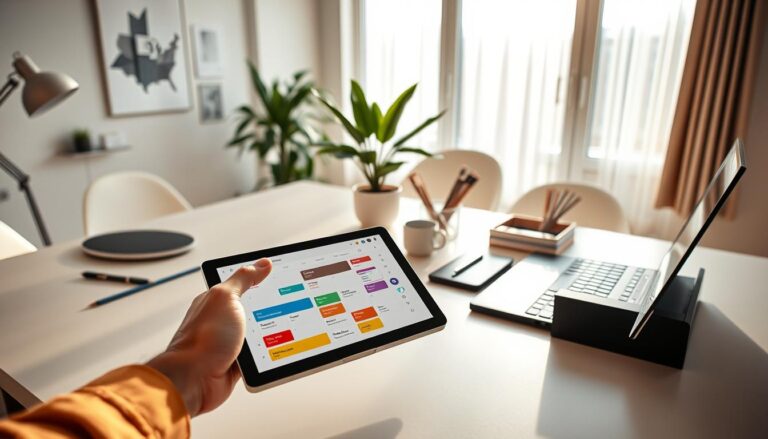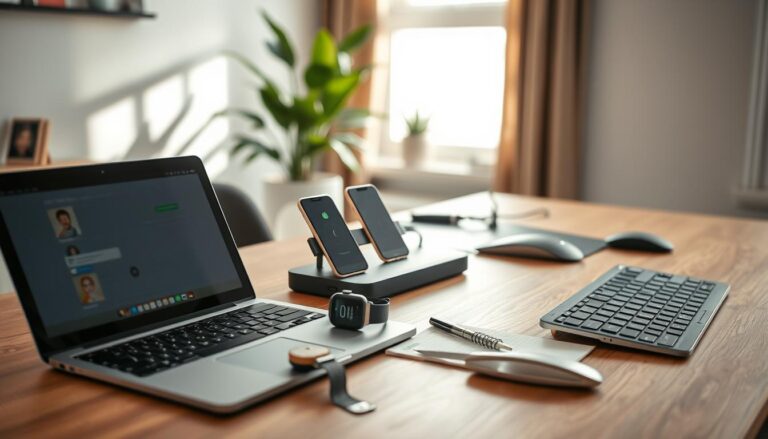

Did you know 82% of U.S. workers find mobile devices help them react quickly? They keep tasks going even when they’re out of the office. This change means phones and tablets are now like mobile offices. They carry tools that were only on desktops before, right in your pocket.
Mobile tech adds flexibility and speed to your work life. With apps like Microsoft 365’s Word, Excel, and Outlook, or Google Workspace’s Gmail, Docs, and Drive, working on the move is easy. You can make reports, sign documents, and reply to messages anywhere.
Being productive could be as simple as replying to an email while commuting. Or, scanning a receipt into an expense app, or approving a purchase on Slack’s mobile app. These actions, made possible by mobile apps, reduce backlog and speed up task completion.
Apps focused on efficiency and mobile-based work routines boost outcomes. They help with faster replies, meeting deadlines, and completing more tasks. Research by McKinsey and Pew shows U.S. workplaces are adopting mobile more and collaborating better remotely.
In the next sections, we’ll explore what mobile productivity looks like. We’ll see which tools have the biggest effect, simple hacks to stay on track, how to set good boundaries, and future mobile work trends.
Understanding Mobile Productivity
Mobile productivity means using smartphones and tablets to get work done well. You use apps, cloud services, and good internet to manage tasks, communicate, edit documents, and plan schedules on the go.
Defining Mobile Productivity
Mobile productivity combines hardware and software to let you work from anywhere. Hardware is your devices, like iPhones, iPads, or Androids. Software includes apps for organizing, like Evernote and Todoist, and managing tasks with Asana. Cloud services like Google Drive keep your files the same across all devices.
It also needs steady internet, great mobile office tools like Google Docs, and ways to switch between emails, calendar, and projects easily.
The Importance of Being Mobile
Mobility is key because more people in the U.S. are working remotely or in hybrid roles. Being mobile lets you make quick decisions by accessing documents and communicating no matter where you are. Sales teams use Salesforce Mobile to keep track of meetings. Retail workers complete sales on the floor with mobile POS systems.
Different jobs find mobile work helpful in their own ways. Freelancers store invoices online. Field technicians look up guides and report from tablets. Managers check team progress while they commute.
Some think mobility is just convenient. But, having the best workflow and tools on your mobile can be as good as on a desktop. Good apps, internet plans, and mobile habits make your phone a powerful work tool.
Benefits of Mobile Technology in Daily Tasks
Mobile devices make your workday better. They help you make quick decisions, answer right away, and keep in touch with your team. You can be anywhere – in the office or moving around. These perks are seen in how we talk, work together, and use tools to keep up with tasks.
Enhanced Communication
Your phone connects you to people fast through many ways. Use email, SMS, or apps like Slack and Microsoft Teams for quick replies. Video calls on Zoom or Google Meet are better than long emails for quick updates.
Being fast in replying cuts down on email overload and makes approvals quicker. A manager can okay a purchase from their email. A teacher can share schedules with parents using WhatsApp Business or Telegram. Cisco Webex offers safe, advanced mobile options for important tasks.
Seamless Collaboration
Working together on mobile means more than chatting. You can work on documents in Google Docs or Microsoft Office while on a bus or train. Tools like Miro and Trello help teams see and do tasks from anywhere.
It’s important that your work stays up to date across all gadgets. Features like autosave, cloud sync, and alerts help. They let you continue your work on any device without missing a beat. This supports teamwork, even when team members are in different places or time zones.
Mobile apps and platforms for teamwork can make decisions faster. Quick updates from your phone can mean fewer meetings and quicker project completion. This is why mobile tools are essential in today’s remote working world, especially for fast-moving teams.
Essential Mobile Apps for Productivity
Pick mobile tools that fit how you work and what devices you use. The best mix of apps for tasks, organization, time management, and productivity turns chaos into progress. Here are some tips and app suggestions to keep your days organized.
>
Project Management Tools
Apps like Asana, Trello, Monday.com, and Basecamp work great on mobile devices. Asana offers clear lists and timelines for tasks. Trello has kanban boards that make organizing easy with drag-and-drop. Monday.com lets you customize workflows to fit your team. Basecamp helps with team messages and to-dos.
Features like push notifications, mobile task adding, and offline access are key. They help you stay updated, capture tasks anytime, and work without internet. These tools are great for assigning tasks, tracking them, and keeping your team in check.
Note-Taking Applications
Evernote, Microsoft OneNote, Notion, and Apple Notes fit all kinds of note-taking needs. Evernote is great for notes with images and scanning receipts. OneNote lets you organize with different sections and pages. Notion is good for building databases and organizing ideas. Apple Notes is perfect for quick notes and handwriting on iOS devices.
Features like OCR scanning, voice memos, and web clippers are super helpful. They turn any small idea into a sorted note in no time. Mixing a note app with your task manager makes sure ideas turn into tasks smoothly.
Time Management Solutions
Todoist, RescueTime, Toggl Track, Google Calendar, and Outlook Calendar manage your time, not just tasks. Todoist uses priority labels and sorts tasks smartly. RescueTime shows you how you spend your time. Toggl Track has easy timers for tracking work. Google and Outlook Calendar remind you of meetings and plans.
Time blocking, Pomodoro timers, and priority labels help organize your day. These tools work well with task managers to keep your goals and deadlines in check.
Integration and Ecosystems
Zapier and IFTTT make different apps work together. Link your project tools with storage, calendars, and chat apps for a smooth mobile office. This setup cuts down on manual work and keeps you from missing tasks.
Selection Tips
Choose apps that are simple to use, work offline, and sync everywhere. Look at security features like two-factor authentication. Check prices to find what fits your budget, for you or a team. Try a free version before paying.
How to Stay Focused with Mobile Devices
Mobile devices can boost your productivity if you use them right. Set clear rules and use built-in features. Small changes in settings and how you organize your workspace can make a big difference. They help you stay focused and cut down on interruptions.
Utilizing Do Not Disturb Mode
Do Not Disturb (DND) and Focus modes silence notifications you don’t need right away. But, they let important alerts through. Start with enabling alerts for meetings. Then, allow messages and emails from important people.
Plan work times without distractions. Turn off social media notifications, but let important calls through. Start with a short focus time. You can make it longer as you get more comfortable.
Use specific app settings to stay focused. For example, set Quiet Hours in Slack and snooze emails in Gmail. This way, you avoid distractions without missing key messages. Mute group chats that aren’t about work. And, let your teammates know when you’re busy through status messages.
Creating a Distraction-Free Workspace
Make a space that helps you focus for longer periods. Have a simple home screen with one work folder. Use airplane mode for tasks that don’t need the internet.
Good gear means less strain and more productivity. A stand for your tablet, a wireless keyboard, and sitting right help a lot. Organize your digital stuff. Use apps to keep all your project materials in one spot.
Find focus habits that work with mobile devices. Use a timer for the Pomodoro technique. Check your notifications at set times only. Stick with one task at a time. Tools like Clockify or Screen Time help you manage your app use and build good habits.
Be clear with your team about when you can talk and work without breaks. Use status settings to show you’re focusing. Stick to it by turning off notifications during those times.
Tackle these productivity tips one at a time. Start small and see what helps you the most. Adjust your settings and habits to find your best workflow. Soon, you’ll work smarter with fewer interruptions.
Leveraging Cloud Storage for Efficiency
When you use cloud storage, your files are always with you. Services like Google Drive, Microsoft OneDrive, and Dropbox allow you to keep all sorts of files. You can access them on any device like a phone, tablet, or laptop.
Offline folders make key files available without an internet connection. Selective sync helps you choose what to keep handy. With file version history, you can fix mistakes without losing your progress.
Accessing Your Files Anywhere
Automatic syncing ensures the latest version of your file is available everywhere. Mobile apps let you quickly open, edit, and save documents. For example, you can adjust a PowerPoint on your phone and see the changes on your computer immediately.
Selective sync saves space on small devices. Offline folders are perfect for areas with weak internet service. This is great for team members in the field or remote workers needing quick access to important files.
Collaborating with Others in Real-Time
Real-time co-editing features make working together easy and fast. Teams can edit documents together, leave comments, and make suggestions. This reduces the need for long email discussions.
Sharing settings help keep your files safe. You can set who can view or edit files, and even add password protection. Tools like Google Workspace Admin and Microsoft Intune help companies manage their data securely.
Cloud storage enhances how marketing teams work. It allows for immediate updates to campaign materials. Everyone knows who’s doing what, making the process smoother and faster.
These tools boost how well you can work on the go. They help avoid doing the same work twice, keep projects on track, and allow teams to work from anywhere. Use smart permission settings and guide your team on how to use these tools safely and efficiently.
The Role of Mobile Technology in Remote Work
Mobile devices transform the way you work from anywhere. They help teams stay in sync and push projects forward. They also allow adjusting schedules across different time zones. With clear guidelines, mobile tools boost both work efficiency and personal wellbeing.

Staying Connected with Teams
Through apps like Slack and Microsoft Teams, your team remains connected. Presence indicators show who’s online. Threaded messages and comments organize chats, making it easy to catch up.
Video apps like Zoom and Google Meet make it easy to have face-to-face meetings. They offer features like virtual backgrounds, suited for joining calls from anywhere. Tools like Trello or Asana provide a clear view of progress, syncing across devices.
Virtual collaboration tools allow work without endless meetings, with features like recorded updates. They let teams coordinate effortlessly, even across time zones.
Balancing Work and Life
Mobile technology lets you work from anywhere, saving commute time. It opens up more job opportunities, benefiting both you and employers. When used smartly, it can save time and widen job searches.
However, being always online can make work and personal life blend. To keep personal time, use Do Not Disturb after work and set boundaries. Having work-specific apps or profiles on your device can also help.
More companies are creating remote work policies. These policies help manage expectations, like when to reply to messages and how work tools are paid for. Setting clear rules helps employees relax off the clock and increases happiness at work.
| Area | Mobile Tool Examples | Benefit |
|---|---|---|
| Messaging & Presence | Slack, Microsoft Teams | Faster decisions, clear availability |
| Video Conferencing | Zoom, Google Meet | Personal connection, flexible check-ins |
| Project Boards | Trello, Asana | Transparent progress tracking |
| Asynchronous Collaboration | Google Docs, Loom | Work across time zones without extra meetings |
| Efficiency Tools | Todoist, Evernote | Better task focus and mobile productivity |
Setting Boundaries with Mobile Devices
Clear boundaries help you stay focused and recharge. Simple routines and device features can help. They mark work times, show when you’re free, and manage notification sounds. Changing your phone settings can make you more productive. It also helps you focus better on your tasks.
Establishing Working Hours
Set clear work hours and share them on your calendar. This lets your team know when you’re available. You can use calendar blocking in Google Calendar or Outlook to set aside time for work and breaks.
With Android Work Profile or Apple Focus modes, keep work and personal life separate. This keeps personal apps away from your work area, reducing distractions. Using a separate device for work helps keep everything organized.
Managing Notifications
Check your app notifications and only keep the important ones on. Turn off unnecessary alerts and customize sounds for important notifications. Set rules to silence certain apps during work hours or at night.
For apps you don’t use often, turn off background updates. Regularly check app permissions. Tools like Screen Time on iPhone or Digital Wellbeing on Android show which apps use your time. Use this info to improve how you manage your time and work better.
Setting Expectations and Reviewing
Discuss and agree on how quickly to respond to messages and who to contact for important issues. A quick reference guide for your team reduces confusion. It helps everyone make decisions faster.
Every few weeks, review and update your settings to match your current job needs. Use Screen Time or Digital Wellbeing to track usage patterns. Adjust your notification settings and apps to ensure your phone helps you, not hinders you.
Boosting Productivity through Voice Assistants
Voice assistants like Siri, Google Assistant, and Amazon Alexa help with hands-free work. You can speak to send messages, make notes, and do tasks quickly. They work great with apps that organize your work and keep you on track.
Organizing Tasks with Voice Commands
Creating tasks and events is easy without typing. Just tell Google to add an item to Trello or your calendar. Use Siri for shopping lists or Microsoft To Do for reminders. This connects your apps and makes organizing simple.
Use one sentence to do multiple things with your voice. This automation is a great way to speed up your mobile work.
Setting Reminders on the Go
Set reminders while doing other things. Tell Alexa to remind you to call HR when you reach the office. Or set a timer while you’re cooking. These reminders connect with your calendar and devices to help you remember.
These reminders also work with Google Calendar and Outlook. They can start smart-home actions that get your work area ready or turn off notifications when you need to focus.
Hands-Free Productivity Scenarios
Dictate notes safely while driving. Use voice commands to check items off a list when cooking. Ask your assistant to prioritize tasks as you move between meetings. This helps handle urgent work without slowing you down.
These examples show that voice assistants make it easier to stay productive and organized anywhere.
Privacy and Accuracy Considerations
Check privacy settings on devices to manage how your voice data is used. Turning off always-listening options can increase your privacy. Make sure only necessary data is shared with your apps.
Teaching your assistant can make it more accurate. It learns to understand you better, making fewer mistakes. This makes relying on voice commands more reliable for work.
Customizing Your Mobile Device for Productivity
Begin by making your phone a perfect work partner. Keep your home screen organized for easy tool access. With careful layout and smart widget picks, your phone becomes a key productivity tool.
Organizing Your Home Screen
Put apps you often use on the dock or first page. This way, they’re just one swipe away. Sort apps into folders like Work, Finance, and Communication to cut down on mess. Move apps you seldom use to an archive to stay focused.
Shortcuts on iOS and Android allow quick actions. Long-press shortcuts to quickly start new tasks, like notes or emails. Turn on gesture navigation for swift access to the camera or app switching.
Selecting the Right Widgets
Select widgets that give useful information quickly. Include a calendar, task list, note preview, and inbox summary. Choose widget sizes based on what they display: small for simple tasks, larger for boards or agendas.
Widgets work best at the top of your first screen. Match widgets to your work: a project board with a calendar for project tasks; messaging and email for communication-focused work.
To make your phone easier on the eyes, turn on dark mode. Increase text size to improve readability. Use tools like Live Text on the iPhone to quickly grab printed info. Keep your settings backed up with iCloud or Google for consistency across devices.
Explore productivity tricks like keeping a minimal dock, using priority folders, and a one-page home screen. Mix organizing and efficiency apps to streamline your routine and save time for focused work.
Staying Updated with Tech Trends
Staying updated means you get more from your gadgets like phones and tablets. New apps, services, and changing tips are important. They help you find the best apps for work and avoid slow processes.
Following Productivity Blogs
Look for websites that try out tools and show how they’re used. Wired, TechCrunch, The Verge, and Lifehacker offer useful advice. They also have reviews to improve your work on the go.
Zapier’s blog has great automation tips you can use. Blogs from Google Workspace and Microsoft 365 tell you about new features. These updates are important for your daily tasks.
Signing up for newsletters like Productivityist and NextDraft gives you expert picks. Listening to podcasts is a good way to learn new work tricks during your commute.
Joining Online Communities
Being part of Reddit groups like r/productivity, r/Android, and r/iOS helps you find solutions. Slack and Discord have discussions where people share useful templates for apps like Notion and Trello.
Going to webinars, online conferences, and meetups teaches you about new features. Getting training from Google, Microsoft, and Atlassian can improve your skills. It also helps with picking the best tools for working remotely.
These communities are great for trying new apps, learning shortcuts, and finding remote work tools that suit you.
The Future of Mobile Productivity
You will see rapid change in how you work on phones and tablets. Networks will get faster, devices smarter, and app connections tighter. These will shape how we work on mobile for years to come.
5G and edge computing will make things faster and reduce delays. Foldable screens bring easier multitasking on the move. Watches like Apple and Android will show notifications without needing a phone. This makes mobile work smoother and more powerful.
Apps now use AI to save you time. For example, Smart Compose in Gmail cuts down typing. Otter.ai makes quick meeting summaries. And apps like Clockwise find you more focus time. They’ll get smarter and more tailored to you.
Start learning tools like Zapier and IFTTT to get ready for AI. Choose apps that work well with Google Workspace or Microsoft Graph. Also, understand privacy and ethics to keep control and convenience in balance.
Your business must improve device security as they do more. Use biometrics and passkeys for safe sign-in. Set clear rules for device management and data. This keeps remote work secure without delay.
Expect to work smarter with less repeating tasks and quicker insights. Use critical thinking and don’t skip manual checks. Too much automation without oversight can lead to mistakes.
Start with mobile tools for everyday tasks and try AI on smaller projects. This lets you see the benefits without risking big workflows.
Conclusion: Embrace Mobile Productivity
Mobile productivity combines apps, cloud services, and voice assistants. You work smarter. Flexibility and freedom let you work from anywhere. Efficiency apps help streamline tasks.
Tips for Your Daily Routine
Choose key apps such as a calendar, Evernote, and Trello. Master them. Schedule focus periods and turn on Do Not Disturb then.
Store important files in the cloud for offline access. Use voice assistants for speedy captures. Weekly, review your notifications to cut down interruptions. Try keeping your home screen simple.
Final Thoughts on Staying Efficient
Try new small changes, like rearranging your home screen or testing new widgets. It’s not about being always on call. It’s about smart tool use for better efficiency and well-being.
Start with a simple change today, like installing an app or enabling focus mode. See how it goes after one week to keep improving.