
80% of professionals saw their work improve with just one app. This shows how the right productivity apps can make a big difference. They can do more than changing your schedule or expanding your to-do list.
This guide will help you find great productivity apps and tools. Ones that really boost your work, reduce problems, and fit how you work. It’s for professionals, freelancers, and students in the United States. They can all find practical software recommendations here.
In this detailed guide, we’ll cover different types of tools: like task management, time tracking, and note-taking. Plus, collaboration, calendars, and many more. You’ll learn when to use each one and how to choose the best ones. We’ll talk about apps like Asana, Todoist, Trello, Notion, and many others. Plus, you’ll get tips on combining them.
Look forward to comparisons, advice on features, and tips based on real experiences. This article is designed to give you clear, helpful information. It focuses on productivity apps and software to help you do more.
Understanding Productivity Apps
Productivity apps make your life easier. They help you handle tasks and time better, and improve how you work with others. They’re designed to make you more efficient, by automating repeat tasks and focusing your attention where it’s needed most.
What Are Productivity Apps?
These apps help organize your life. They can be simple, like lists for daily tasks, or complex, suiting big projects. Examples include Microsoft To Do for simple lists and Asana for bigger projects. Apps like Evernote help with notes, while Google Calendar keeps track of time.
Why Use Productivity Apps?
Using these apps saves time and clears your mind. They remind you of tasks, make sharing easy, and speed up work with templates. Tools analyze your time use, and automation like Zapier cuts down on repetitive tasks. This leaves more room for creativity and important tasks.
Different Types of Productivity Apps
Different apps serve different needs. If you work alone, task managers and time trackers might be best. Teams could need tools for managing projects together. For creative work, try note-taking apps. To form good habits, check out Habitica. Apps like Forest help you stay focused.
When picking an app, think about whether it works on all devices, has reminders, and can work offline. Compare apps to find what’s best for your needs. Look for the features that fit your workflow.
Task Management Apps
Task management apps are key for keeping an eye on work, deadlines, and small tasks. Choose a tool that fits your thought process and your team’s workflow. They offer a clear structure and easy input methods, saving time and effort.
Popular Task Management Tools
Todoist is great for adding tasks quickly and understands natural language dates. Microsoft To Do is perfect for users who rely on Microsoft 365, especially Outlook and Teams. Asana offers boards and timelines for managing complex tasks as a team.
Trello uses visual Kanban cards for quick updates on progress. Things is designed for macOS and iOS users looking for a sleek task manager. Remember The Milk is a good choice for those who want simple lists and powerful filtering options.
Features to Look For
Look for apps that offer natural language for adding tasks, the ability to set recurring tasks, and prioritization options. Using tags or labels can help organize work by context or energy level needed. Subtasks and checklists break down big projects into smaller, manageable steps.
Due dates and reminders help you keep track of deadlines. It’s also useful if the app sorts projects in a hierarchy and integrates with calendars and emails. Make sure it has both mobile and desktop versions, and if you’re part of a team, check for sharing and collaboration features.
Tips for Effective Task Management
Choose a single tool to keep all your tasks to avoid losing track of them. Start with basic lists like an inbox, today’s tasks, upcoming tasks, and long-term plans. Group related tasks using projects and labels for quick sorting and filtering.
Break down big tasks into smaller steps to make each task clear and actionable. Whenever possible, assign tasks to specific times in your calendar to ensure focused work.
Have a weekly review session to reorganize and remove tasks that are no longer relevant. Keep your active task list short to avoid feeling overwhelmed. Use templates for tasks you do often to save time. Automate task capturing from emails or chat apps with tools like Zapier or IFTTT.
| Tool | Strength | Best For |
|---|---|---|
| Todoist | Natural language entry, cross-platform sync | People who need quick task adding and strong filters |
| Microsoft To Do | Deep Microsoft 365 integration, simple lists | Users dedicated to Outlook, Teams, and corporate accounts |
| Asana | Team boards, timelines, project views | Teams involved in complex project handling |
| Trello | Adaptable Kanban boards, visual task flows | Visual organizers and small groups monitoring progress |
| Things | Sleek experience for macOS/iOS, focused design | Apple enthusiasts looking for a stylish organizer |
| Remember The Milk | Powerful sorting, smart lists, easy interface | Those who prefer quick list making and reminders |
Time Tracking Apps
Tracking your work hours turns effort into clear data. Time tracking apps show where your time goes. They expose low-value tasks and help freelancers with precise billing. Use reports for better time estimates and stay focused by limiting work to set periods.
Benefits of Time Tracking
Logging time shows you your daily habits. It helps cut or delegate tasks that don’t add much value. This way, you use your hours more productively. Accurate time logs make billing clients easier and reduce payment disputes. Setting time limits also helps you focus and stops you from multitasking.
Reviewing time reports weekly makes planning your time simpler. You understand how long tasks really take. This lets you make more accurate schedules. Tracking also helps prevent too much work from leading to burnout.
Top Time Tracking Apps
Choose tools that fit how you work. Toggl Track has easy timers and reports you can tailor for clients or projects. RescueTime works quietly in the background, tracking where you lose focus. Clockify offers a great free plan with manual entries and timers for group use.
Harvest combines time tracking with billing features, making it easy to turn hours worked into invoices. Timing is best for macOS users, offering automatic, detailed activity logs. Read reviews of productivity apps to find the best fit for your needs.
How to Choose the Right Time Tracker
Decide if you prefer automatic tracking or manual timers. Automatic tools log activity with no effort from you. Manual timers need you to start and stop them, which some people prefer. Make sure the tool’s reports show billable hours, productive time, and key priorities.
Check if the tool works with your project management and billing software. Having it on both mobile and desktop makes tracking easier. Make sure you control your data for privacy. Using the tool should be easy; look for quick timer starts and stops.
Look at the cost and what the free version offers. Try the tool for a week with your tasks. Connect time entries to projects, set aside time for focused work, and use weekly reports to tweak your goals. Don’t track too much—focus on what really helps you make better choices.
| App | Main Strength | Best For | Free Tier |
|---|---|---|---|
| Toggl Track | Simple timers and customizable reports | Freelancers and small teams wanting clarity | Yes |
| RescueTime | Automatic tracking with distraction analysis | Knowledge workers aiming to improve focus | Limited |
| Clockify | Generous free plan with manual and timer options | Teams needing a no-cost solution | Yes |
| Harvest | Time tracking plus invoicing | Freelancers who bill clients directly | Limited |
| Timing | macOS automatic, detailed activity logs | Mac users wanting passive tracking | No, trial available |
Note-Taking Apps
Choosing the right note-taking app is crucial. It impacts how you gather ideas, manage projects, and save research. This guide offers practical advice. It helps choose the best app, set up an organized system, and sync notes across devices. This ensures your work is always with you.
Best note-taking apps available
Notion is great for its flexible databases and adaptable pages. Evernote excels in web clipping and has a great search feature. Microsoft OneNote is perfect for those who use a stylus, offering freeform notebooks. Apple Notes integrates well with iPhone and Mac. Google Keep is good for quick notes and simple lists.
Organizing your notes effectively
Begin by making clear main categories such as Work, Personal, and Projects. Use notebooks or databases in Notion to group these. Tag your notes to link related information, like connecting meeting notes to project briefs.
Keep a uniform title naming system. Make templates for things you do often, like meeting plans and research summaries. Every month, take some time to clean up. Archive or delete notes you don’t need anymore. This keeps your note system clean and useful.
Syncing across devices
Ensure the app you pick works on desktop, mobile, and web. This lets you work from anywhere. Notion, Evernote, OneNote, Apple Notes, and Google Keep allow you to sync across different platforms. They also provide offline access. If you’re worried about privacy, look for apps that keep data mostly on your device.
Turn on history and backup features if you can. Use web clippers to save research easily. Link your notes with your calendar and to-do lists to make action items from your notes. Also, export important docs as PDFs to save them safely.
| App | Standout features | Best for | Sync & offline |
|---|---|---|---|
| Notion | Custom databases, templates, nested pages | Project docs, knowledge bases | Desktop, web, mobile; offline on desktop |
| Evernote | Web clipper, advanced search, note history | Research and long-form notes | Desktop, web, mobile; offline on paid plans |
| Microsoft OneNote | Freeform notebooks, ink support, Office integration | Students and pen users | Desktop, web, mobile; offline available |
| Apple Notes | System-level integration, quick sketches, locking | iPhone and Mac users | iOS, macOS, web; offline via device |
| Google Keep | Simple notes, reminders, labels, voice notes | Fast capture and reminders | Web, Android, iOS; offline via mobile |
Collaboration Tools
When teams are far apart, they need systems that mix talks, files, and choices in one spot. Good collaboration tools lessen email clutter. They keep track of documents and help teams in different places stay on the same page.
Importance of Collaboration Apps
When chat, calls, and file sharing are together, you get answers quickly. Using these apps cuts down meeting times and makes switching tasks easier. They have clear channels and a history you can search, making it simpler to find past decisions.
Essential Features of Collaboration Tools
Search for apps with real-time chat and threaded conversations to keep messages clear. File sharing and searchable history are key to finding old information fast. Video and voice calls are vital for quick understanding and feeling connected.
Also, look for apps that work well with task and project tools. Having control over who sees what keeps important files safe. Knowing who is free to chat, by looking at indicators and choosing important alerts, is helpful.
Top Collaboration Apps to Explore
Slack is great for its channels and apps marketplace, which makes workflows custom. Microsoft Teams works well with Office 365 for easy meetings and editing documents. Google Workspace brings together Chat, Meet, and Drive for easy teamwork using Gmail and Docs.
Zoom is known for dependable video meetings and fits large groups. Basecamp mixes messages with project tools for teams that prefer fewer apps.
Advice on productivity apps suggests picking a main chat app and connecting it to your task manager. Test a few top apps to see how they cut down on emails, speed up decisions, and reduce switching between tasks.
- Set channel naming conventions so people know where to post.
- Establish norms on when to use chat versus email for clarity.
- Pin key documents and use integrations to surface tasks and calendar events.
- Turn off non-essential notifications to limit interruptions.
Calendar Apps
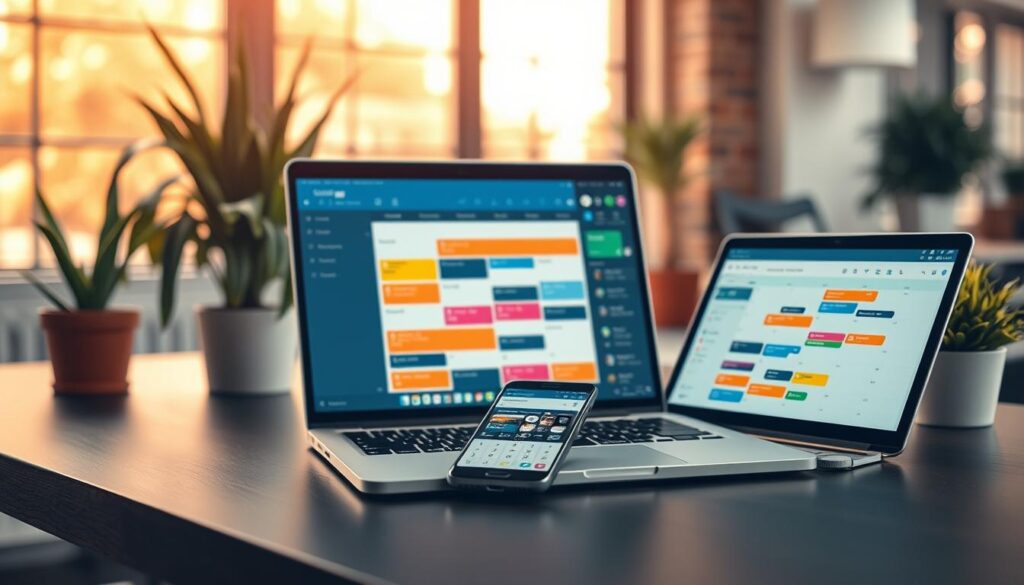
Calendars transform plans into set commitments. They keep you from double-booking and allow focused time for deep work. With the right calendar apps, planning is easy, meetings are clear, and you control your day.
Why calendar tools improve your workflow
Blocking time protects your creative work from distractions. Using calendar apps helps set buffers and remind you of important deadlines. It makes schedules visible to the team, cutting down on unnecessary back-and-forth for group projects.
Must-have calendar apps to try
Google Calendar syncs across devices, shares easily, and integrates with many tools. Microsoft Outlook Calendar is great for businesses, with support for Exchange and rich scheduling options. Apple Calendar provides a seamless experience for macOS and iOS users, syncing smoothly across devices.
Fantastical offers quick event entry through natural language for Apple fans. Calendly makes scheduling meetings hassle-free, avoiding email back-and-forth to find suitable times.
How to integrate calendars with the rest of your stack
Link your calendar apps with task managers like Trello or Asana to make deadlines visible on your calendar. Connecting time trackers helps automatically log focused work. Scheduling tools let you share meeting links and gather availability easily.
Use colors to differentiate work, personal, and project calendars. This visual strategy helps you prioritize at a glance, enhancing productivity software use. Treat your calendar as a central hub that connects tasks, timers, and collaboration tools.
Practical productivity tips
- Adopt time-blocking for deep work and review blocks at the week’s start.
- Enforce short buffers between meetings to avoid burnout and overruns.
- Enable reminders and notifications for critical events you can’t miss.
- Keep a shared team calendar for launches, deadlines and personal time off.
Pairing calendar apps with your productivity tools turns plans into reality. When calendars mesh with other tools, you schedule less and do more. This practice makes calendar apps vital for weekly productivity.
Habit-Tracking Apps
Using a habit tracker makes forming steady routines easier. These apps show your progress, reward you for streaks, and gently push you to be consistent. With them, small daily actions lead to big improvements over time.
How They Boost Productivity
Habit-tracking apps increase your motivation. This happens each time you mark a habit as done.
They use streaks and visual progress to encourage you. This makes tasks feel automatic, not like a big effort.
Key Features to Look For
Look for apps where you can pick which habits to track. They should offer reminders and scheduling that fits your life.
Features like progress charts and options for getting back on track help a lot. Adding journal entries and notes lets you fine-tune your habits.
Apps with community or accountability support are great for extra motivation.
Recommendations for Habit-Tracking Apps
Begin with one to three important habits. Combine your tracker with calendar or task apps to form daily habits. Check your progress every week and make changes if needed.
- Habitica — Turns your habits into quests with rewards for a fun motivation boost.
- Streaks — A simple iOS app focused on keeping daily streaks.
- HabitBull — Provides detailed analytics for those who love data.
- Momentum Habit Tracker — Elegant tracking on macOS and in your browser.
- Loop Habit Tracker — An open-source app for Android with good reminders and visuals.
When looking for the best productivity tools, include a solid habit-tracking app. Use tips on productivity apps to choose one that fits your way of working. It will help keep your habits on track.
Project Management Software
Choosing the right tool can transform how your team works. For big projects with many people involved, deadlines, and limited resources, project management software is key. It lets you keep tasks in line and show progress. Use these platforms for projects that are too complicated for simple lists.
When to Use It
Use a full platform for projects with lots of parts. If you’re managing deadlines, assigning tasks, or reporting to clients or bosses, a dedicated tool can help. It’s useful for agencies, product teams, and IT groups. Especially when you need to pass tasks, get approvals, and plan who does what.
Popular Choices
Asana helps manage many projects with clear timelines. Jira is great for tracking software issues. Monday.com lets you see work visually with its flexible boards. ClickUp brings together documents, tasks, and goals. And Basecamp is all about easy team chats and simple project pages.
Essential Features for Success
Look for features like task dependencies, so tasks are done in order. Gantt charts or timelines help visualize deadlines. Planning who does what keeps everyone from getting too busy. Reports and dashboards keep everyone updated. Controls over who sees what keep sensitive stuff safe. Also, look for tools that work with your other apps.
Templates make starting new projects faster. Automation takes care of routine tasks, letting your team focus on important stuff. Before starting, set up how things will be done and named. Keep the view simple to avoid confusion. Teach the team the main features. Regularly check dashboards to spot any delays early.
| Tool | Best For | Key Strengths | When to Choose |
|---|---|---|---|
| Asana | Project and portfolio management | Timelines, portfolio views, task dependencies | Teams that need clear visual schedules and stakeholder reporting |
| Jira | Software development and issue tracking | Workflows, sprint planning, bug tracking | Engineering teams using agile methods |
| Monday.com | Visual work operating system | Custom boards, automations, flexible views | Cross-functional teams that need customizable dashboards |
| ClickUp | All-in-one workspace | Docs, tasks, goals, rich integrations | Teams that want to consolidate tools into one app |
| Basecamp | Simple team coordination | Message boards, to-dos, straightforward setup | Small teams or agencies seeking minimal overhead |
When comparing options, consider how they fit with your team’s way of working and size. Looking at productivity apps helps you see differences in reports, team work, and price. Trying out a few top apps on real projects helps you find the best match for your team’s needs.
Mind Mapping Tools
Mind maps make messy thoughts into clear plans. They help you see how ideas connect and organize them well. When you need quick brainstorming or a simple project outline, these tools are perfect.
Benefits of Mind Mapping for Brainstorming
Mind mapping lets you picture your ideas. It shows links that straight notes can’t. By creating groups, you can easily outline your projects.
Adding colors and symbols highlights what’s important. This makes it easier to see next steps when you share your maps with others.
Top Mind Mapping Apps Available
There are many good apps depending on your needs. MindMeister is great for teamwork, offering shared maps and presentation tools. XMind has many templates and lets you share reports easily. Coggle is user-friendly, perfect for group projects.
Miro mixes the freedom of a whiteboard with mind mapping, ideal for creative sessions. FreeMind offers a no-cost option for those who like simpler software.
Tips for Effective Mind Mapping
Start with a main idea. Then, branch out into clear categories. Keep branches short to stay organized.
Turn important branches into tasks. Share your maps as PDFs or images, or connect them to your projects. Use mind maps with note apps for detailed plans that are easy to follow.
Focus and Concentration Apps
It’s getting harder to stay focused with all the pings and open tabs. By using smart tools and simple habits, you can boost your attention. Focus apps and productivity tools help you block out distractions, work in timed cycles, and track your concentration levels.
Features That Help You Stay Focused
Search for app blockers that work on all your devices to keep temptations away. Using Pomodoro timers helps divide your time between work and breaks. This gives your brain time to rest and reset.
Ambient sounds or white noise can lessen the impact of background noise, helping you stay focused longer. Tools that score your focus and analyze your work show you where your time goes and which tasks you’re actually moving forward on.
Setting up focus sessions on your calendar ensures time for deep work. Full-screen modes can also help by removing distractions from your view.
Recommended Focus Apps
Forest helps you stay off your phone by growing a virtual tree when you focus. Freedom is great for blocking distracting websites and apps on all your devices, helping you maintain focus.
Focus@Will provides productivity music that complements your work pace. Pomodone links Pomodoro technique timing with your task list, making sure you complete tasks, not just count time.
Cold Turkey blocks your desktop for serious, uninterrupted work sessions. Each of these tools meets different needs, ranging from gentle reminders to strict rules.
Managing Distractions Effectively
First, figure out what distracts you the most, like social media or endless notifications. Using app blockers during focused work times and setting regular focus periods can help you stay on track.
Tracking your time during focused sessions can highlight what works best. Setting communication guidelines, like status updates and automatic replies, reduces interruptions during important tasks.
Work in short, intense periods that fit your natural work rhythm, anywhere from 25 to 90 minutes. Take proper breaks and schedule your toughest tasks during your peak energy times for the best results.
| App | Main Strength | Best Use Case |
|---|---|---|
| Forest | Phone-based Pomodoro with visual incentives | Reducing phone checks and building daily focus habits |
| Freedom | Cross-device site and app blocking | Blocking multi-device distractions during deep work |
| Focus@Will | Productivity music tailored to attention | Enhancing concentration with scientifically designed audio |
| Pomodone | Pomodoro tied to task managers | Completing tasks rather than just tracking time |
| Cold Turkey | Powerful desktop blocking and lockdowns | Enforcing uninterrupted work sessions on PCs and Macs |
Automation and Integration Tools
Automation stops you from doing the same tasks every day. It reduces manual work and keeps results the same. It also frees up your time for bigger projects. Use automation tools to make workflows faster and cut mistakes. This lets your team focus on more important work.
Why automation matters for productivity
Removing repetitive tasks lowers mental strain and boosts output. Automations follow rules that might be forgotten when you’re tired. They work all the time, ensuring data, backups, and reports are always updated.
Best automation tools to simplify tasks
Pick a tool that matches your needs for scale and security. Zapier connects thousands of apps easily. IFTTT is good for simple day-to-day shortcuts. Microsoft Power Automate is great for big companies using Microsoft 365. Make lets you build complex workflows visually. Automate.io is best for small to mid-size businesses.
How to get started with automating
Start by automating one process. Choose the trigger and what you want to happen. Test it on a small scale to avoid big mistakes. Keep an eye on it for any issues and note down any failures.
Write down what each automation does and its purpose. Make sure app connections are safe. Always check privacy settings before giving access.
Try these common automations: turn emails into tickets, make tasks from form leads, set up calendar workflows, automatically make weekly reports, back up files, and share content across social media. Link your favorite apps with productivity software to work together as one system.
Begin with small steps, look at the outcomes, and grow the automations that save the most time.
Evaluating Your Productivity Tools
Start by keeping track of simple but key metrics linked to your work process. These include time saved, how fast you complete important tasks, and the balance between billable and non-billable hours. Also, check how well you stay focused. Add feedback about stress levels and how clear your priorities are to these numbers for a complete view. Use the analytics from tools like Toggl, RescueTime, Asana, or Monday for solid data.
How to Measure Effectiveness
Make goals for 30 and 90 days based on specific metrics, then regularly check your progress. Look for patterns, like if you’re finishing tasks quicker or getting interrupted more. Use a dashboard or spreadsheet to track both hard data and personal feedback. Bring in thoughts from discussions on productivity apps and compare them to see how you stack up against others.
When to Change Your Productivity Apps
Think about changing apps when the one you’re using doesn’t grow with you, wastes your time, misses key features, or just costs too much. If fewer team members use the app, try a small test with other options before switching everyone over. Look into recommendations and trials of different apps to find the best fit without causing too much disruption.
Balancing Multiple Tools for Efficiency
Go for a simple yet effective set of tools: one main tool for each task—like scheduling, note-taking, and collaboration. Connect them with things like Zapier, native integration, or APIs to reduce the need to switch between apps. If some tools serve the same purpose, choose which is primary and which is secondary, and make sure everyone knows the system.
Have audits every three months to drop tools you don’t use, check your integrations, and train your team. Keep all guides easy to access and use. Starting small, measure how things change, and adjust until your toolset really makes work smoother and more productive.